1
Face focused reverse image search
Frequently praised for finding matches that competing image search engines miss.
Face focused reverse image search web app for tracking people or photos across sites. Fast, accurate matches and simple workflow, but strict paid unlock model and occasional relevance issues limit trust for heavier or professional use.
Independent review — we test tools ourselves and analyze public user reviews. How we test.
Lenso AI earns strong praise for fast, accurate face search that often surfaces matches other image engines miss. Reviewers highlight simple navigation, useful detail on matches, and generally good value compared with alternatives. Criticism clusters around strict unlock limits, paywalled details, occasional weak or confusing results, and some account or captcha friction. Inconsistent performance on AI generated images and a few low trust comments about incentivized reviews are notable. Best suited for users who regularly verify identities, track image misuse, or research images and can tolerate a credit based pricing model.
Lenso AI is an AI-powered reverse image search engine from a Poland-based company launched in 2024, built to answer one question: where else does this image appear online? Upload a photo and it searches billions of indexed images, sorting results into categories for people, places, duplicates, similar, and related visuals. Its facial recognition engine is the headline feature, precise enough to find faces even in altered or group photos, though face search is restricted to selected regions due to privacy laws.
Beyond one-off lookups, it works as a monitoring tool: email alerts flag new matches for a saved image, collections organize findings, and domain and keyword filters narrow results, with a Chrome extension and API rounding things out. That makes it useful for photographers chasing unauthorized image use, brands protecting assets, and researchers verifying photos. The free tier is essentially a demo, with paid plans from $15.99 per month unlocking 50 source links, and like all image matching, accuracy drops on heavily edited or low-resolution pictures.
Frequently praised for finding matches that competing image search engines miss.
Repeatedly described as super fast with quick search responses.
Often called accurate and credible, though a minority reported random or poor matches.
Monthly unlock limits and pay per result model widely criticized as stingy.
Interface and navigation generally praised as easy to use and straightforward.
Some users highlighted strong historical matches and results across different languages.
At least one reviewer struggled to delete an account without support help.
Support referenced positively as smooth or responsive in a few interactions.
Face swaps and image to video capabilities praised as realistic and impressive.
I opened the site without an account first to see what a new visitor gets right away.
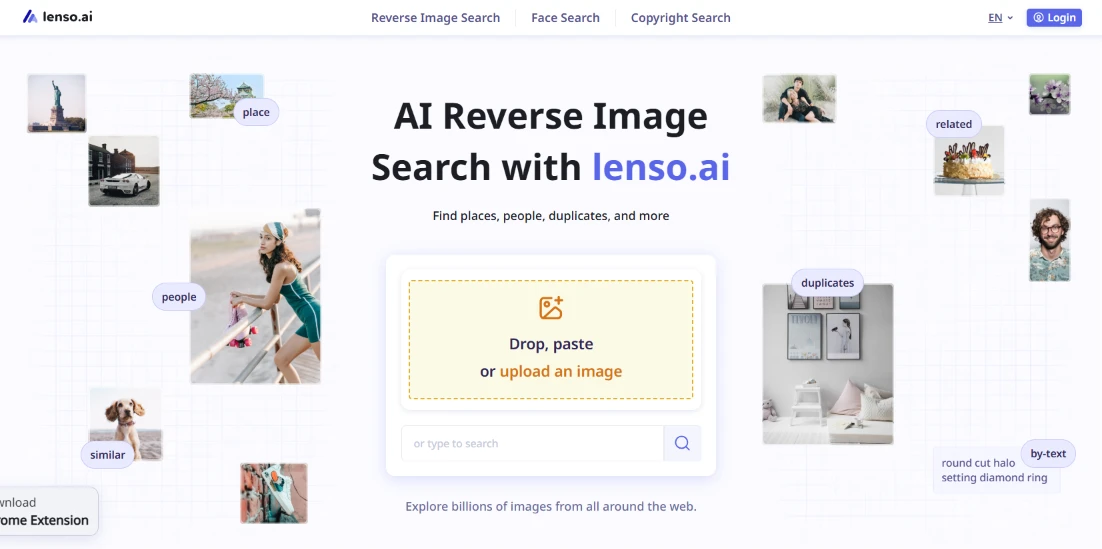
The homepage puts a big drop-zone in the middle with the heading "AI Reverse Image Search with lenso.ai" and a subheading about finding places, people, duplicates and more. Around that central box, small sample images float in the background with labels like place, people, similar, related, duplicates, by-text. The top nav offers Reverse Image Search on the left with Face Search and Copyright Search sitting next to it. A Login button waits in the top right.
The floating sample images doubled as a tutorial for me. I already had a mental picture of what each tool would return before clicking anything.
After signing up and logging in, I landed on my account home page.
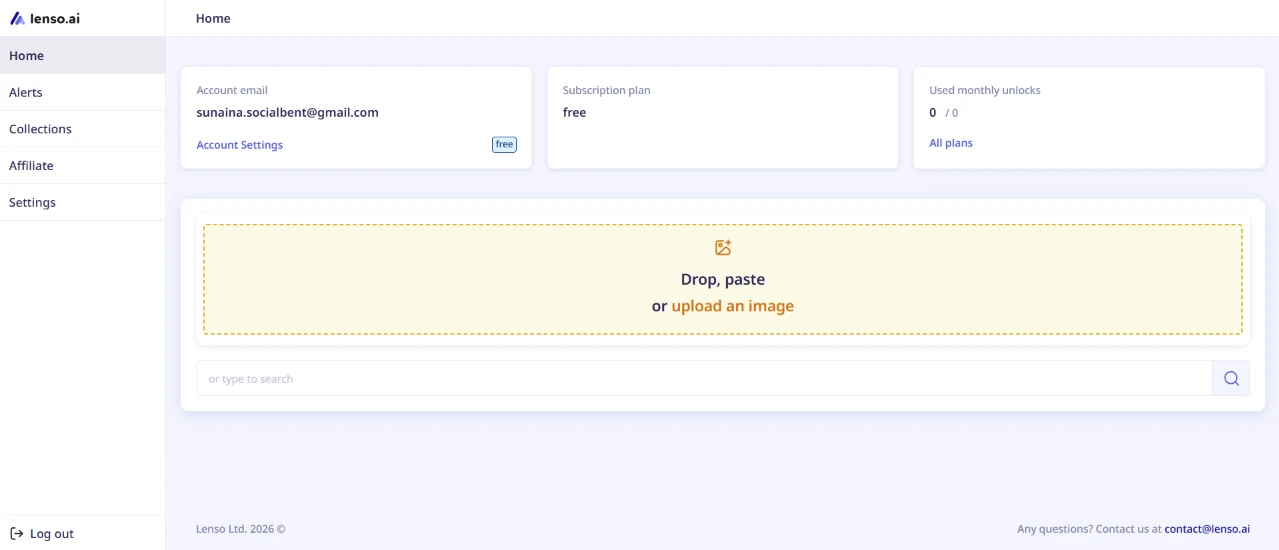
Three status blocks sit across the top of the dashboard. My account email is on the left. Subscription plan (free) sits in the middle. Used monthly unlocks (0/0) is on the right. Below those, the same drop-zone I saw on the homepage is there again, with a text search bar underneath. A left sidebar lists Home, Alerts, Collections, Affiliate, Settings, plus a Log out button pinned to the bottom.
I appreciated that my plan and my remaining unlocks sit at the very top. Nothing to hunt for.
I clicked Reverse Image Search in the top nav.
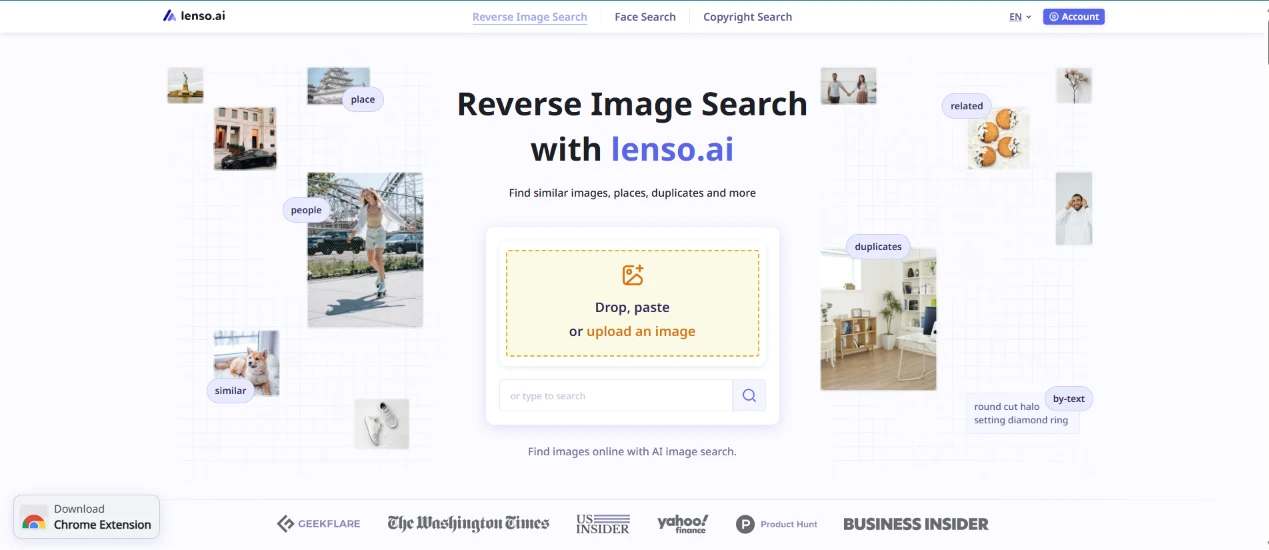
The layout is almost identical to the homepage. Same drop-zone, same floating category thumbnails around the edges, tightened copy that reads "Reverse Image Search with lenso.ai" and "Find similar images, places, duplicates and more." A row of press logos sits along the bottom.
For a second I thought I had not gone anywhere. The page reuses the homepage pattern so closely that I had to look at the heading to be sure I was on the right tool.
I dropped a fantasy character portrait into the drop-zone. Long dark hair and purple armor, with a city skyline behind her.
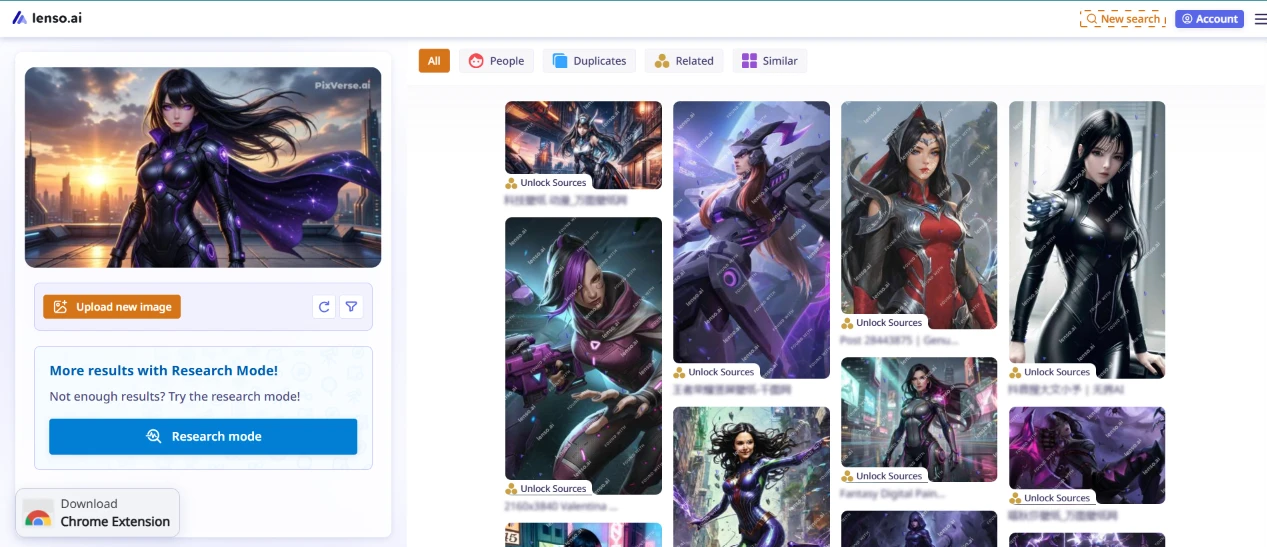
The result page loaded quickly. My uploaded image stuck to the left in its own panel with an Upload new image button under it and small refresh plus filter icons beside it. On the right, a tab strip showed All, People, Duplicates, Related, Similar. Under the tabs sat a grid of matching images, most stamped with a small "Unlock Sources" overlay meaning I would have to spend an unlock to see the source URL.
A blue "More results with Research Mode" callout sat under my uploaded image, with a Research mode button.
The matches were on target. Every single result the page showed me was a fantasy female character with either the same purple-and-black armor palette or the same long dark hair. The upload-to-results speed felt like a couple of seconds at most.
I clicked Face Search in the top nav.
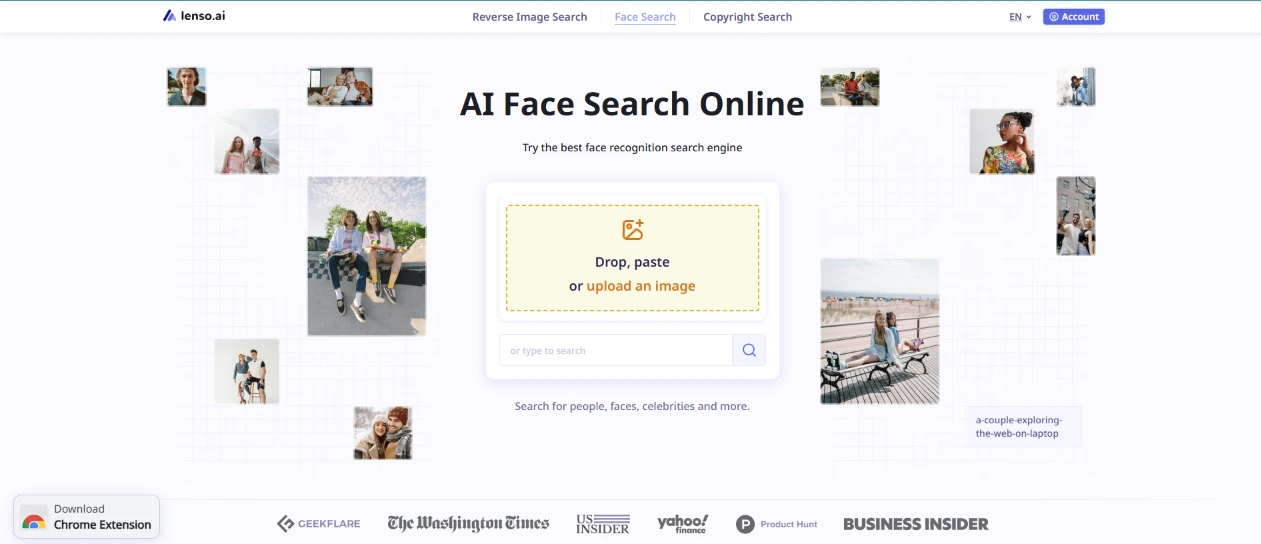
The page title changed to "AI Face Search Online" with a subheading reading "Try the best face recognition search engine." The drop-zone stays in the middle, but the floating sample images around the edges swapped out. Instead of the mixed objects and places on the reverse-search page, these are all human faces and portraits.
That was a nice detail. Each tool swaps its background examples to match what the tool actually does, so I never lost track of which mode I was in.
I dropped in a portrait photo of a woman standing in a field with light hair and a white dress.
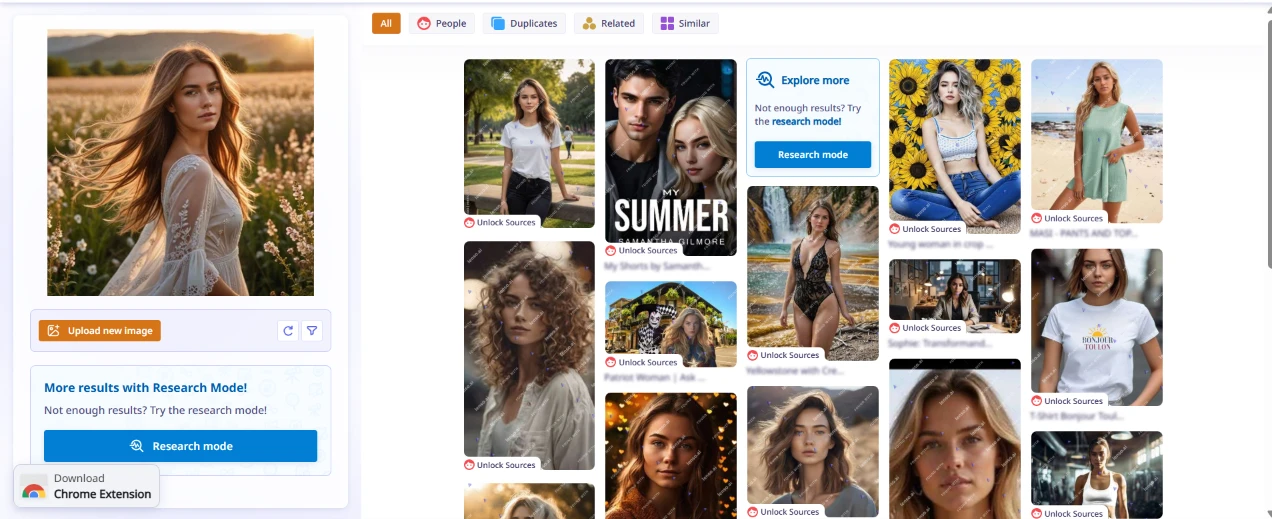
The result page kept the same skeleton as before. My photo pinned on the left. The same tab strip along the top of the right side (All, People, Duplicates, Related, Similar). A grid of matches filling the space below the tabs. Above the grid there was an "Explore more" callout with a Research mode button labeled "Not enough results? Try the research mode!"
The face matches were closer than I expected. Every result in the grid was a young woman photographed outdoors in soft natural light with a similar hair tone. A couple of results looked like the same model in different shoots. Same Unlock Sources overlay on every card.
Last stop was the Copyright Search tab.
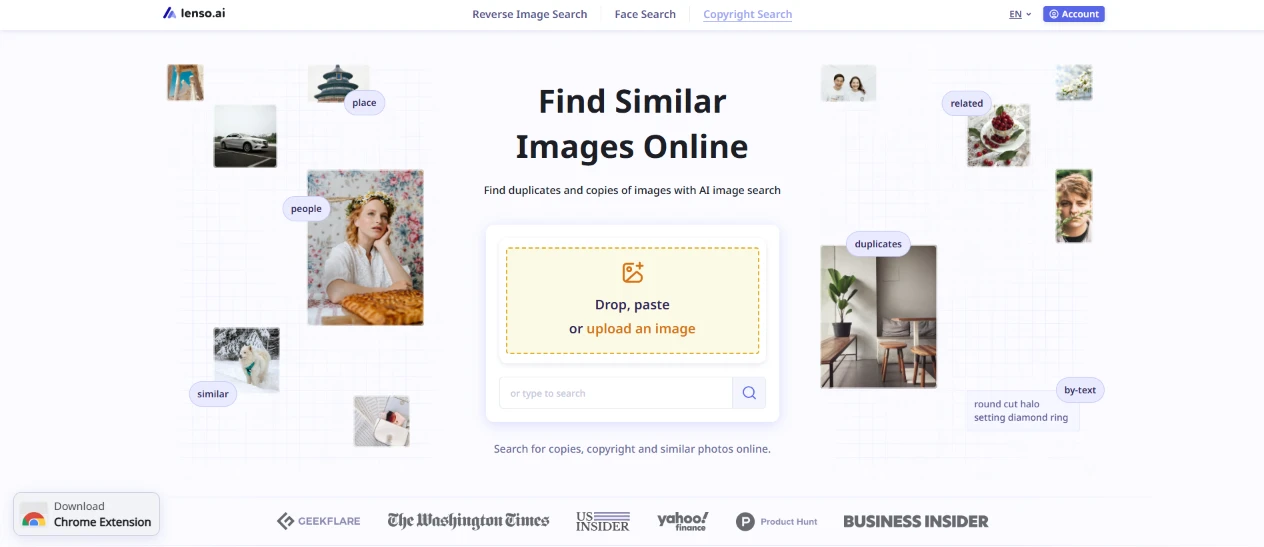
The page opened with the title "Find Similar Images Online" and a subheading, "Find duplicates and copies of images with AI image search." Same drop-zone, same press-logo strip at the bottom, and the floating sample images around the edges swapped again to a photo-like set of examples.
Third tool, third variant of the same landing page. Once you use one of these, you know how to use them all.
I dropped in a photo of a woman in dark outerwear against a city background.
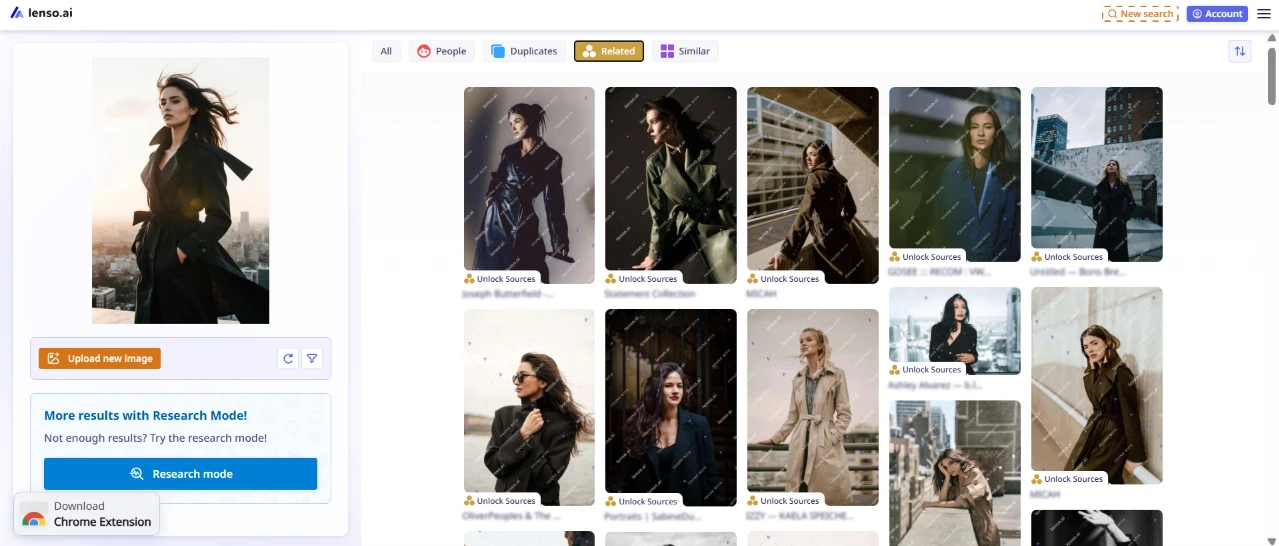
The result page loaded with the Related tab already selected as the default instead of All. The grid filled with women photographed in dark coats against similar city or window backdrops. Some looked like near-duplicates of the pose. Others were looser stylistic matches.
The pre-selected Related tab was interesting. On the earlier two tools the default tab was All, but the copyright search opened straight to Related, which makes sense given the tool is about finding copies and lookalikes rather than the exact source. Every result again carried an Unlock Sources overlay.
| Dimension | Our test | User signal | Verdict | Composite |
|---|---|---|---|---|
| Search Accuracy How precise matches are | 9 | 9.2 | Excellent | |
| Result Coverage How many sources appear | 8.8 | 9 | Excellent | |
| Ease of Use How simple the interface feels | 9 | 9.4 | Excellent | |
| Pricing and Limits Perceived value and restrictions | 6.5 | 6 | Moderate | |
| Transparency and Trust Business practices and communication | 6.8 | 6.2 | Moderate | |
| Customer Support Helpfulness of assistance channels | 8 | 8.3 | Good |
Toolscopia uses cookies to keep you signed in, remember your preferences, and understand how our reviews get read. Analytics are anonymous. See our privacy policy for the full detail.
Comments 0
Join the discussion and share your perspective.
Sign in to post a comment and reply to other readers.
No comments yet
Be the first to share your perspective on this tool.