You exported a report from your CRM and opened a 9,000-row spreadsheet, and you have no idea which three numbers matter for tomorrow's meeting. You are not a data analyst. You do not write SQL. And the person who does is booked solid until next week. This guide is for that exact moment.
The short version, by situation: if you just need a quick answer from a file, start with ChatGPT or Claude. If you will run the same analysis every week, Julius AI or Powerdrill Bloom fit better. Small business running on a CRM, use Zoho Analytics. Microsoft 365 shop, use Power BI Copilot. The rest of this article shows how to pick, and how to trust what the tool tells you when you cannot read the code behind the answer.
What a "non-analyst" data tool actually means
An AI data analysis tool for non-analysts lets someone with no coding or statistics background ask a question about their data in plain English and get back a chart or a number, with a plain-English summary of what it means. The tool writes and runs the query behind the scenes, so the person never has to write code or build a formula.
That definition sounds obvious, yet most "best tools for non-technical users" lists quietly ignore it. They pad the rankings with notebook platforms and warehouse-native tools that a real non-analyst cannot operate alone. One of the most detailed guides in this space even states its review is source-based rather than hands-on. So the first job here is to draw a sharp line.
"Non-analyst" is not the same as "non-technical"
A marketer who builds pivot tables is technical in one sense but is still a non-analyst. The question that matters is simpler than skill level: can this person get a trustworthy answer on their own, today, without handing the file to someone else? A tool that needs a data engineer to define a semantic layer before it works fails that test, no matter how friendly its marketing sounds.
The families you will run into
Nearly every tool falls into one of a few groups, and knowing which one you are looking at saves hours.
AI chat tools are the ones you upload a file to and talk to. ChatGPT, Claude, Julius AI, and Powerdrill Bloom live here.
AI-layered BI means a full business intelligence platform with an AI assistant bolted on, like Power BI Copilot and Tableau Pulse.
AI spreadsheets are your familiar grid with a built-in assistant, like Rows and Copilot in Excel.
The non-analyst tools at a glance
Here is the full shortlist scored on what matters to someone without an analyst on call. Pricing is verified against vendor pages as of September 2026.
| Tool | Best for | Data source | Fully no-code? | Free tier reality | Check-your-numbers? |
|---|---|---|---|---|---|
| ChatGPT / Claude | A one-off question on a file | CSV, Excel, PDF | Yes | Free plan works; Plus $20/mo | Shows steps if you ask; verify totals |
| Julius AI | Repeat analysis on files | CSV, Excel, Sheets, DBs | Yes | Free daily credits; Plus $20/mo | Saves each step as a notebook |
| Powerdrill Bloom | Fast CSV-to-visuals | Excel, CSV, TSV | Yes | Free daily credits; Pro ~$17/mo | Auto-generates charts and decks |
| camelAI | Typed question to a chart | CSV | Yes | Free tier; paid upgrades | Interactive charts you can trace |
| Rows | Living in a spreadsheet | Sheets + 50+ connectors | Yes | 5 AI tasks/mo free; Plus $8/user | Formulas are visible and editable |
| Gemini / Copilot in Sheets & Excel | Staying in your spreadsheet | Google Sheets, Excel | Yes | Needs Workspace / M365 | Answers sit next to your data |
| Zoho Analytics (Ask Zia) | Small business app data | CRM, GA, 500+ sources | Mostly | Free for 2 users, 10K rows | Governed metrics reduce drift |
| Power BI Copilot | Microsoft 365 shops | Azure, Excel, SQL | Mostly | Desktop free; Copilot needs Fabric | Warns that mistakes are possible |
| ThoughtSpot / Tableau Pulse | Bigger teams, once set up | Warehouse, live data | After IT setup | Trial only; from $15/user/mo | Strong once an analyst models it |
Every price in this guide was taken from the vendor's own pricing page in November 2026. AI pricing changes often, so confirm the current number before you buy.
Choose in about a minute
The fastest way to narrow the field is to start with one question that has nothing to do with features: where does your data actually live right now? Your budget and your trust needs refine it from there. The flowchart below walks the whole decision in a single glance.
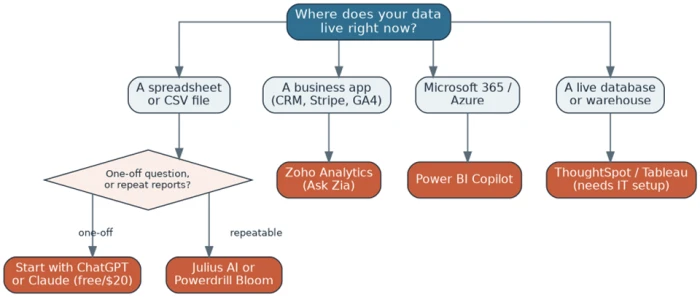
Decision path for picking a non-analyst AI data tool, by where your data lives.
Two situations deserve extra thought. If the answer will end up in front of leadership, lean toward a tool that keeps a visible trail of its steps, because a wrong number in a board deck costs more than a slow one. And if your data sits in a warehouse, accept that the strong options there need an analyst or IT to set them up once before you can self-serve.
The tools, judged for non-analysts
Julius AI: best for chatting with a spreadsheet
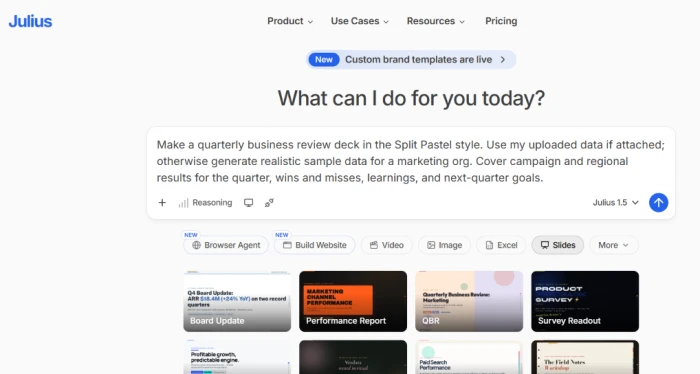
Drag in a CSV or an Excel file (Google Sheets works too), ask something like "what is the correlation between ad spend and conversions by channel," and Julius writes the Python behind the scenes and hands back charts with the statistics to match. Every conversation is saved as a reusable notebook, so you keep a trail you can revisit. Among the chat tools, users tend to rate Julius the most capable for real analysis, and the complaint that comes up most is how fast multi-step work burns through credits. It can also invent plausible-looking statistics when column labels are ambiguous, so verify anything important against the source.
Best for a non-analyst who runs the same kind of analysis on files most weeks and wants each step saved as a notebook to rerun. The reusable notebook is the feature that sets it apart from a plain chatbot.
Pricing (julius.ai): the free plan runs on daily credits with no card required. The Plus plan is $20 a month, or $16 a month on annual billing, and includes 2,000 credits a month. Pro and Max tiers scale the credits up from there.
ChatGPT and Claude: the zero-setup starting point
For a one-off question, the tool you already pay for may be enough. Upload a file to ChatGPT's data analysis mode or to Claude and ask in plain English. It runs code in a sandbox and returns results you can read. No new account. Nothing to onboard.
People reach for these first because they are already open on the screen. Precision is the weak spot. Large language models are built to produce a fluent answer, and that instinct can surface as confident, wrong numbers on messy or large datasets. Treat them as a fast first pass, not the system of record for a metric you report every month.
Best for a quick, throwaway question on a small file, with zero setup. The key feature is that there is nothing to install or learn.
Pricing (openai.com and claude.com): both have a free plan that handles light file work. ChatGPT Plus is $20 a month. Claude Pro is $20 a month, or $17 a month on annual billing.
Powerdrill Bloom and camelAI: fastest path to visuals
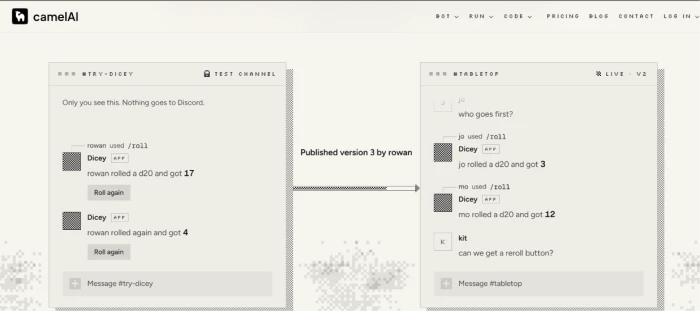
These are built for people who want a picture, not a prompt-engineering session. Upload a spreadsheet and Bloom detects the key metrics and exports a slide-ready deck in one click. camelAI works the same way for CSV files, turning a typed question into an interactive chart. The trade-off people note is less depth than Julius once the questions get complicated.
Best for turning a spreadsheet into a shareable visual or a slide deck by end of day. One-click export to a deck is the standout.
Pricing (powerdrill.ai and camelai.com): Powerdrill has a free plan with 1,000 daily credits, and its Pro plan is $199 a year, about $17 a month on annual billing. camelAI starts free and sells credit-based upgrades on its site.
Rows: for people who live in a spreadsheet
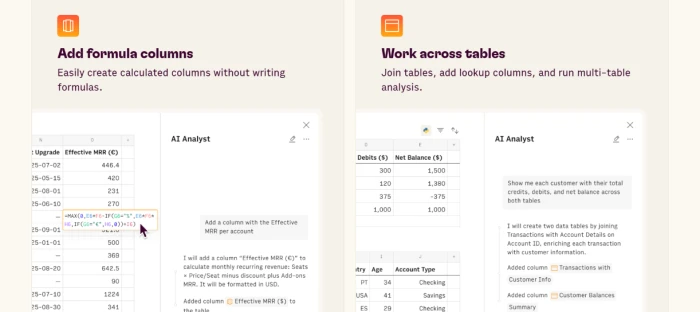
If your team refuses to leave the grid, Rows gives them an AI analyst inside a familiar spreadsheet. Ask a question in plain language and it returns charts and summaries next to your cells, and it pulls live data from 50-plus services without middleware. Reviewers like that the formulas stay visible, so you can sanity-check the logic yourself. The ceiling people hit is that free-tier task cap.
Best for a team that will not leave the spreadsheet grid but wants plain-language analysis inside it. Visible, editable formulas are the key feature for anyone who wants to check the work.
Pricing (rows.com): the free plan includes 5 AI tasks a month. The Plus plan is $8 per user a month, or $6 per user on annual billing, which lifts the cap to 200 tasks. The Pro plan adds a platform fee on top for heavier use.
Gemini in Sheets and Copilot in Excel: stay where you are
The lowest-friction option is often the assistant already sitting in your spreadsheet. Ask Gemini in Google Sheets or Copilot in Excel to summarize a range, write a formula, draft a chart, or clean a column, and the answer appears beside your data. There is nothing new to learn and nothing to upload. Verdicts are mixed by task: handy for quick summaries and formulas, weaker on anything that spans several sheets.
Best for someone who wants answers next to their cells without uploading a file anywhere. The key feature is that the data never leaves the sheet it already lives in.
Pricing (workspace.google.com and microsoft.com): Gemini now comes bundled with Google Workspace, and Business Standard at $14 per user a month is the plan that turns it on inside Sheets (the $7 Starter plan leaves Sheets out). Copilot in Excel needs a Microsoft 365 subscription plus the Copilot add-on, which Microsoft lists at $30 per user a month on an annual commitment, with a cheaper Copilot Business add-on near $21 for organizations under 300 seats.
Zoho Analytics with Ask Zia: small business app data
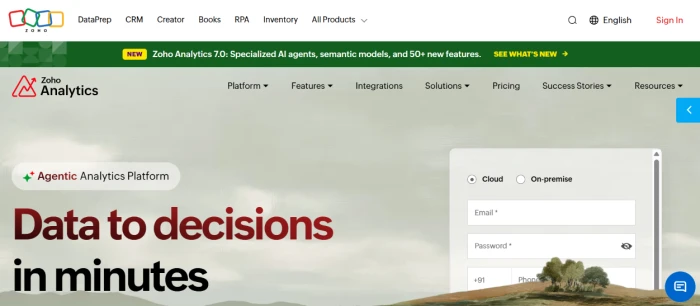
When your numbers live in several business apps at once, like a CRM and your accounting software, Zoho Analytics pulls them into one place and lets you type questions to Ask Zia. Zia has been in production since 2018, so it is steadier on routine questions than newer entrants, and the platform connects to hundreds of sources. Governed metric definitions help different people avoid reporting conflicting numbers for the same thing. Small-business users rate the connector coverage highly, and the gripe is a learning curve on the BI side once you go past simple questions.
Best for a small business whose numbers are scattered across a CRM and a few other apps. Governed metric definitions are the feature that keeps everyone reporting the same number.
Pricing (zoho.com): the free plan covers 2 users and 10,000 rows. Paid plans start at $25 a month for Basic (2 users, 0.5 million rows) and run up to $495 a month for Enterprise (50 users, 50 million rows). Pricing is per account, so users are shared rather than charged per seat, and Ask Zia comes with the paid plans.
Power BI Copilot: for Microsoft 365 shops
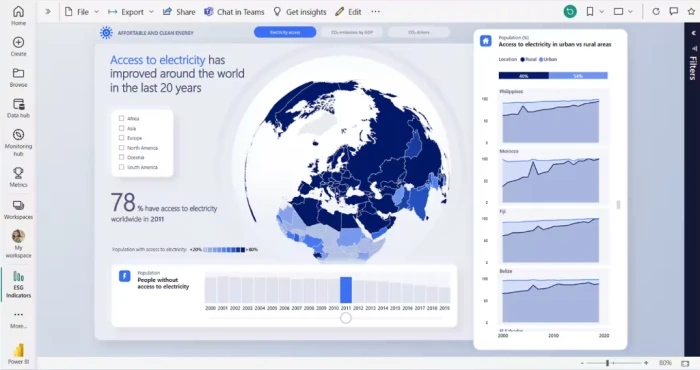
If your company already runs on Microsoft 365 and Azure, Power BI Copilot turns plain-English prompts into report pages and DAX measures, and it reads reports back to you in words. The reach across the Microsoft stack is unmatched, but the AI headline comes with a cost asterisk covered below.
Best for a company already standardized on Microsoft 365 and Azure that wants reports built from plain-English prompts. The reach across the Microsoft stack is the draw.
Pricing (microsoft.com): Power BI Pro is $14 per user a month, and Premium Per User is $24 per user a month. Copilot is the catch. It needs paid Fabric capacity or a Premium Per User license on top, so the AI is not part of the base Pro seat most teams buy.
Read the fine print on AI cost
Power BI itself warns that Copilot "mistakes are possible," and the feature struggles on complex, multi-table models. Budget for the Fabric capacity and keep a human on any figure that drives a decision.
ThoughtSpot and Tableau Pulse: bigger teams, after setup
These belong on the list with a clear label. ThoughtSpot lets business users search their data like a search engine, and Tableau Pulse sends plain-English summaries when a metric shifts. Both are usable by non-analysts once the data is modeled, but that modeling is analyst or IT work. Pick them when your organization is ready to invest in setup, not when you need an answer this afternoon.
Best for a bigger team ready to have an analyst model the data once, so everyone else can self-serve afterward. Search-style questions and automatic metric alerts are the standout features.
Pricing (thoughtspot.com and tableau.com): ThoughtSpot Essentials starts around $25 per user a month on annual billing, and Pro runs from about $50 per user a month. Enterprise is quoted on request. Tableau Pulse comes inside Tableau Cloud, where the Standard plan is $15 per user a month and Enterprise is $35 per user a month, both billed annually.
Cost is where the "non-analyst" promise meets reality. The entry paid plans cluster tightly, which means price rarely decides the winner. Fit to your data source does.
How to trust an answer you can't verify in code
This is the skill that separates a useful AI habit from a risky one, and it is the part almost every tool guide skips. The core problem is documented: low data literacy and skills gaps rank among the top roadblocks to analytics success, according to Gartner's 2024 CDAO Agenda Survey.
You do not need to read code to protect yourself. You need a routine.
The five-step check before you present a number
· Sanity-check against something you already know. If last month's revenue was roughly $240K, an AI answer of $2.4M is a unit or a filter error.
· Ask the same question a second way. Rephrase it. If the two answers disagree, one is wrong and you have caught it.
· Check the row count. Ask how many rows it used. A number far below your file size means it silently dropped data.
· Make it show its work. Ask for the steps or the filters applied. You do not have to read code to spot "it excluded 2024" when you wanted 2024.
· Keep humans on the definitions. What counts as an "active user" is a business decision, not something to outsource to a model.
Red flags that an answer is made up
· A figure that is suspiciously round, or suspiciously precise, with no explanation.
· Confident language attached to a column the tool clearly misread.
· A chart whose total does not match the sum you can eyeball in the file.
· A big jump or drop the tool cannot explain when you ask it why.
Is it safe to upload your company data?
Before a customer list or a revenue file leaves your laptop, two questions decide the risk. First, does the tool use your uploads to train its models, and can you switch that off? Business and enterprise tiers usually let you. Second, how long is the data retained, and where. For regulated or genuinely sensitive data, that answer belongs to your IT or security team, not to a free consumer plan.
A simple rule
If you would not email the file to a stranger, do not paste it into a free AI tool. Use a paid business tier with training turned off, or ask IT which tool is already approved.
Final verdict
If you want one default, start with ChatGPT or Claude for the throwaway questions and move to Julius AI the moment you notice yourself asking the same thing every week. That pairing covers most non-analysts for $20 a month or less, which is why it sits at the top of this guide.
Reach past that default only when your data lives somewhere those tools cannot follow. A small business running on a CRM is better served by Zoho Analytics, which pulls the apps together and keeps definitions consistent. Microsoft shops get the tightest fit from Power BI Copilot, provided the Fabric cost is budgeted from the start. Data sitting in a warehouse means accepting that the strong options need an analyst or IT to set them up once before anyone can self-serve.
The pick matters less than the habit that follows it. What separates the people who get value from AI data analysis from the ones who get burned is not the tool they chose. It is whether they run the five-step check before trusting a number. Match the tool to your data, then spend your effort verifying the answer.


Comments 0
Join the discussion and share your perspective.
Sign in to post a comment and reply to other readers.
No comments yet
Be the first to share your perspective on this article.