There is a specific kind of dread that hits when you open a design tool for the first time. The screen is blank. The toolbar has forty icons. You wanted a birthday flyer or a slide for Monday's meeting, and instead you are staring at a cockpit.
That feeling is not a lack of talent. Most people who say "I can't design" can tell a clean poster from a cluttered one in half a second. What they lack is the muscle memory to make the thing in their head appear on the screen. AI moved where that struggle begins.
The tools below do not ask you to know what kerning is or which font pairs with which. You describe what you want, and the software handles the parts that used to take years to learn. This guide walks the same road a non-designer actually travels, and each tool is a station along it. We point backward and forward as we go, so you can see how one need leads into the next.
One honest note before the first station. AI can execute, but it cannot decide what looks good for you. We come back to that near the end.
How to read this list
These ten tools are not ranked best to worst. They are ordered by the job you are trying to get done, because the best tool for a logo is useless for a slide deck. Find the station that matches today's problem, and come back when the next one shows up.
1. Canva: home base for almost everything
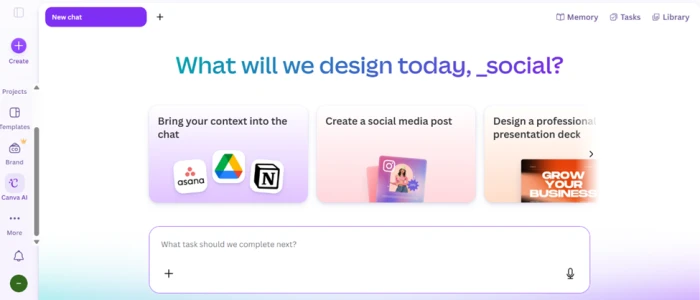
Canva is where most non-designers should start, and for plenty of people it is also where they stop. The reason is simple. You open it, type what you need or pick a template, and you are editing something real within a minute instead of building from an empty page.
Its AI lives under the name Magic Studio. Magic Design turns a prompt or an uploaded photo into finished, editable layouts. Magic Write drafts the words for you. There is also an image generator, plus a one-click tool that resizes a single design into every size a social platform asks for.
The free plan is usable on its own and includes a set of Magic Studio credits each month. Canva Pro runs about $15 a month, or roughly $120 a year if you pay annually, which lands near $10 a month. Pro raises your AI credits and unlocks the premium library, with brand kits that keep your colours and fonts steady across everything you make.
If you learn only one tool here, make it this one. Everything after solves a narrower problem that Canva either does not do, or does not do as well.
2. Microsoft Designer: the free first step
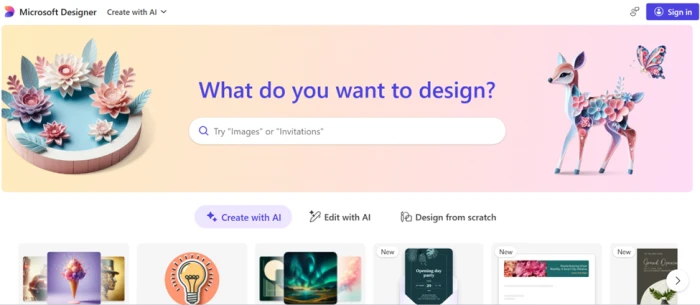
Not everyone wants to pay before they know a tool will help. Microsoft Designer answers that. It is free with a Microsoft account, and its headline trick is turning a plain text description into a complete social post, with the caption and the image generated for you.
The image generation runs on DALL-E, so the quality is strong for something that costs nothing. You also get the practical cleanup jobs that once needed Photoshop, like background removal and erasing an object you did not want.
The catch is credits. Free accounts get a limited number of AI generations each month, so heavy users run dry. For light needs, that ceiling rarely bites. Think of Designer as what you reach for when Canva's paid features feel like more than today's task deserves.
3. Adobe Express and Firefly: when the image has to be safe to use
Here is a problem most beginners do not see coming. You generate a beautiful image, put it on a product you sell, and later wonder whether you were ever allowed to use it commercially.
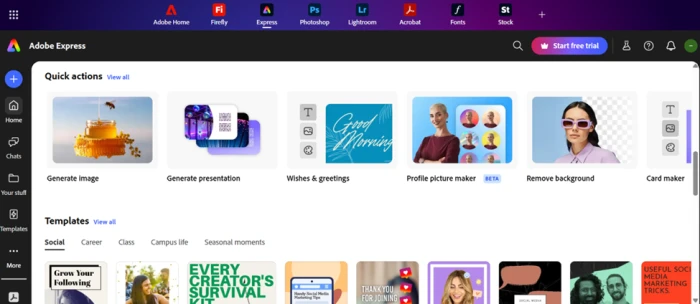
Adobe built Firefly partly to remove that worry. Its models are trained on licensed and Adobe Stock content, which is why Adobe calls the output "designed to be commercially safe." For a small business putting AI images on packaging or ads, that matters more than a few extra style filters.
Firefly lives inside Adobe Express, a Canva-style editor. The free plan includes a small monthly allowance of generative credits. Express Premium sits around $9.99 a month and raises that allowance while adding commercial use, and a separate Firefly plan near $19.99 a month opens up far more credits. If you sell things, this is where image licensing stops being a quiet gamble.
4. Ideogram: when the words have to sit inside the image
Most AI image tools fall apart the moment you ask for text. You request a poster that says "Grand Opening Saturday" and get "Grnad Openig Satrday" in a melting font.
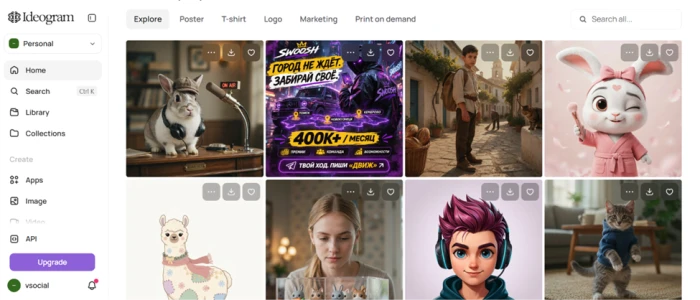
Ideogram was built to fix exactly that. It renders readable words inside images better than almost anything else, which makes it the pick for posters, logo concepts, video thumbnails and greeting cards where the lettering has to look deliberate.
It has a real free plan, though a small one, with a handful of slow credits each week. Paid tiers start cheap, around $8 a month, and add private generations and more speed. You will not open Ideogram every day. On the day you need a headline baked into a graphic, nothing else here comes close, and that alone earns it a spot of its own.
5. Gamma: the deck you can actually talk from
Slide decks are where "I can't design" causes the most public pain, because people sit and watch you present them.
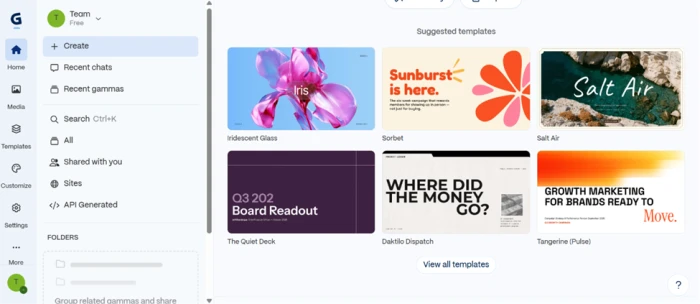
Gamma removes the layout work. You type a topic or paste rough notes, and it generates a full deck with the design and images already handled. The output is web-native, so it looks current and resizes cleanly, and you can turn the same content into a simple one-page website without learning anything new. We reach dedicated website tools shortly, but for a quick landing page attached to a talk, Gamma is often enough.
The free plan hands you 400 AI credits once, not every month, which is enough to build several decks while you decide if you like it. Paid plans start around $8 to $10 a month per person. Gamma is the fastest way from a blank mind to a deck you are not embarrassed to open.
6. Napkin AI: turning your own writing into a picture
Sometimes the thing you need is not a photo or a poster. It is a diagram that explains a process, and drawing one by hand in a design tool is slow and fiddly.
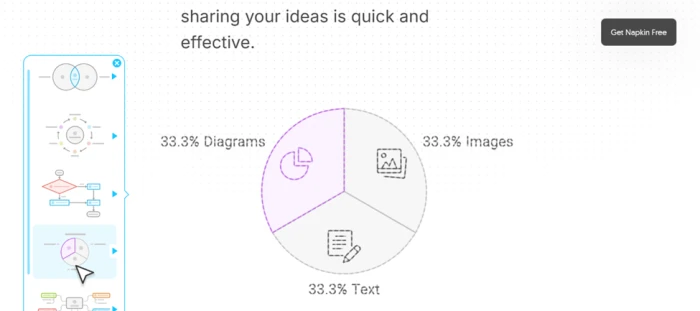
Napkin AI does one job and does it well. You paste text you have already written, whether a paragraph or a rough list of steps, and it turns that into editable diagrams, flowcharts, mind maps and infographics in seconds. A numbered process becomes a clean flow and a comparison becomes a side-by-side graphic, with you keeping control of the styling throughout.
The free plan covers casual use with weekly credits. Paid plans start around $10 to $12 a month. Where Gamma builds the whole deck, Napkin is the tool for the single stubborn slide that needs a diagram, and the two sit happily side by side.
7. Looka: your first logo and brand kit
Every brand needs a logo, and hiring a designer for one is out of reach for a lot of people who are just starting out. Looka generates logo options from your business name and a few taste choices, then lets you refine the one that clicks.
It is free to design and preview. You pay only when you want to download, and the pricing is mostly one-time rather than a subscription. A basic logo package starts around $35, and a fuller package near $72 gives you vector files, colour variations, transparent backgrounds and full commercial rights. There is also a Brand Kit subscription, around $96 a year, with hundreds of matching templates once your logo exists.
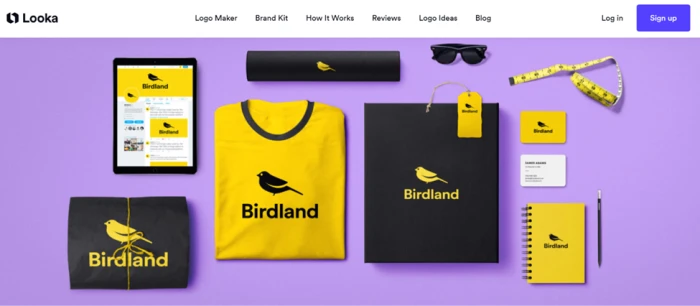
A logo is the first piece of a visual identity. Looka hands you that piece, and the brand kit it builds becomes the raw material for the website we turn to next.
8. Framer: the website without the web developer
A logo and a few graphics eventually need a home, and that home is a website. Framer builds one from a prompt. You describe the site you want, and its AI generates a responsive, publishable page you can edit visually by clicking on things rather than writing code.
It sits closer to a real design tool than a basic template builder, so the results look current, and it hosts the finished site for you. The learning curve is steeper than Canva, the trade for more control.
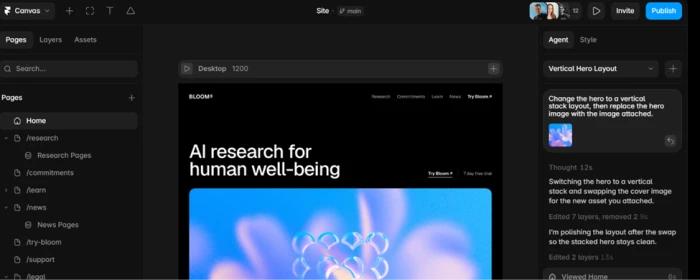
Framer has a free plan for a personal project on a Framer subdomain. Paid plans start around $10 a month for a basic site with your own domain, and about $30 a month for a larger one. Pricing follows your site's size and traffic rather than how many AI prompts you run. This is where the scattered pieces finally sit together in one place people can visit.
9. Uizard: sketching an app screen
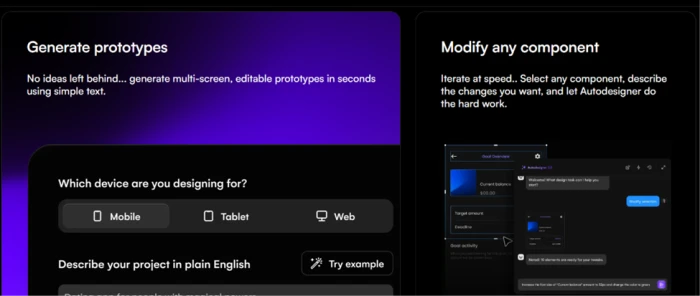
Say your idea is not a poster or a site but an app. You can picture the screen, yet you cannot draw it in a way anyone else would take seriously. Uizard, now part of Miro, closes that gap.
It turns a text prompt into an editable app or website mockup, and it can do the same from a hand-drawn sketch or a screenshot. Describe a screen and its Autodesigner produces a multi-screen layout you can click through like a real prototype. It is a mockup and ideation tool rather than a finished-code generator, so treat the output as a way to show an idea, not ship it.
For a non-designer trying to explain an app to a developer or a co-founder, that is exactly the right job. The free plan allows a couple of projects with limited AI generations. Paid plans run around $19 a month for Pro, with team pricing above that. Uizard is the bridge between a vague app idea and something concrete enough for other people to react to.
10. Picsart: the quick fix on your phone
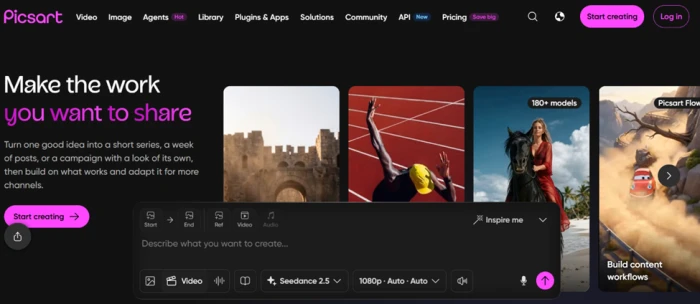
Not every design task happens at a desk. Often you are on your phone, you have one photo, and it needs a fast cleanup before it goes out. Picsart covers that last stretch.
It is a mobile-first editor with AI shortcuts for the tedious parts. The background remover cuts out a subject in seconds, and other tools erase unwanted objects or drop your subject onto a brand new scene. The free tier opens the basic editor with a few AI credits a week, alongside ads and a watermark on some content. Paid plans are cheap, commonly $5 to $15 a month, and clear those limits away.
Picsart will not build your brand or your website. It is the tool that makes the single photo in your hand look intentional, wherever you happen to be standing.
Pick by what you need
Here is the same road as one reference, so you can jump to the station that matches today's problem.
| What you need today | Start with | Rough cost beyond free |
|---|---|---|
| Everyday graphics and social posts | Canva | ~$15/mo, or ~$10/mo billed yearly |
| A free quick post or image | Microsoft Designer | Free, with monthly AI limits |
| Images you can safely sell with | Adobe Express + Firefly | from ~$9.99/mo |
| A graphic with readable text in it | Ideogram | from ~$8/mo |
| A presentation or one-page site | Gamma | from ~$8 to $10/mo |
| A diagram built from your own notes | Napkin AI | from ~$10/mo |
| A logo and a starter brand kit | Looka | ~$35 one-time, kit ~$96/yr |
| A full website | Framer | from ~$10/mo |
| An app or UI mockup | Uizard | from ~$19/mo |
| A fast photo fix on your phone | Picsart | from ~$5/mo |
Prices shift often and vary by region, so confirm the current figure on each tool's own pricing page before you commit.
What AI still won't do for you
Here is where that opening honest note lands. These tools remove the mechanical difficulty of design. They do not hand you judgement. AI can spin up fifty versions of a poster in a minute, and it still needs you to decide which one is right and which headline is trying too hard.
That is good news. The part of design that was gatekept, the software skill, is now cheap. The part that was always yours, knowing what you want to say and who you are saying it to, is what decides whether the work lands, and no subscription replaces it.
So pick one station, make something badly, then make it less badly. Taste grows by fixing your own work, and these tools let you run that loop ten times faster than anyone could five years ago.
Comments 0
Join the discussion and share your perspective.
Sign in to post a comment and reply to other readers.
No comments yet
Be the first to share your perspective on this article.