1
AI video generation from prompts
Generates short videos from text prompts, widely praised for creativity and overall quality.
Clipfly is an AI video and image generator that turns photos and text prompts into short clips. Results impress beginners and casual creators, though credits, pricing changes, and inconsistent outputs frustrate heavier or more demanding users.
Independent review — we test tools ourselves and analyze public user reviews. How we test.
Clipfly delivers surprisingly strong AI video and image generation with sharp details and realistic motion, especially for simple prompts and front facing photos. Most reviewers praise its ease of use, quick results, and creative flexibility. The main drawbacks are very limited free credits, recent coin cost hikes for videos, watermarks, and occasional failed or inconsistent generations that waste paid credits. Reliability for complex clips and enhancement workflows still lags. Best suited for content creators and casual users who value simplicity and strong outputs over generous free usage.
Clipfly is a browser-based AI creation platform from Clipfly Technologies. It turns text prompts or uploaded images into finished videos, and it carries the same generative approach across still images and music. The promise is that you can produce media without editing experience or installed software, working entirely online.
The range is what separates it from a single-purpose generator. Alongside text-to-video and image-to-video, it runs an AI image generator, a music generator, talking avatars, a drama script tool and a timeline editor, drawing on outside models such as Kling, Seedream, HappyHorse and Veo. It follows a freemium model, so a limited free tier sits beneath paid plans that unlock higher-resolution exports and drop watermarks. The people it targets are creators and marketers who value quick output over hand-crafted editing.
Generates short videos from text prompts, widely praised for creativity and overall quality.
Turns still photos into animated clips, effective for memories but inconsistent for tricky faces.
Creates detailed images that often match prompts closely, frequently complimented by reviewers.
Built in AI music tools described as strong, with one review calling quality second to none.
Provides convenient ratio options for social platforms, noted as helpful by content publishers.
Watermark feature divides opinion, some like control while others want watermark free exports.
Coins control video usage; price hikes and low free credits are frequently criticized.
Interface is often described as easy, suitable for newbies with little technical experience.
Trial experience showcases capability, but free credits are considered very limited.

I started on the homepage. The header ran across the top with dropdowns for Video Editing, AI Video, AI Image, AI Music, plus a Pricing link, and the hero line read "Your Everyday AI Video & Image Toolkit" above a single purple Generate button.
A row of sample creations sat lower down, including an astronaut holding flowers and a hamster in sunglasses, which gave me a quick read on what the models could produce before I committed to anything.
Signing in dropped me straight onto the dashboard. Three banners rotated at the top. Seedream 5.0 Pro led, followed by HappyHorse 1.1 and then KLING 3.0 Turbo, each tagged Now Available.
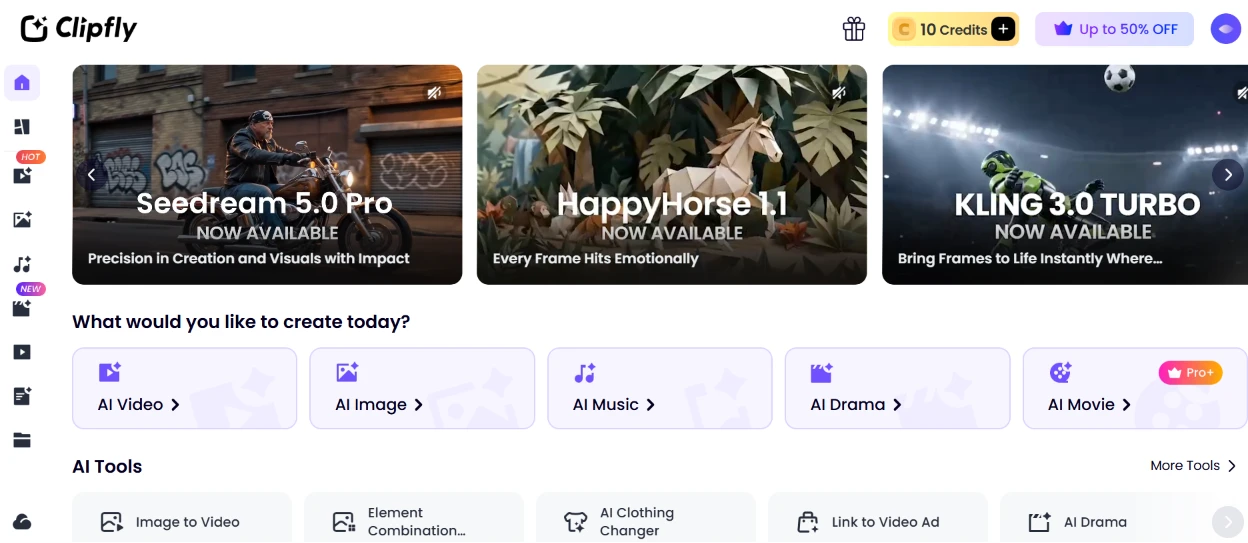
Under "What would you like to create today?" I had entry points for AI Video, AI Image, AI Music, AI Drama and AI Movie, with the Movie option marked Pro+. A second strip called AI Tools held Image to Video, Element Combination, AI Clothing Changer, Link to Video Ad and AI Drama.
My credit balance showed 10 right away, which set the tone for how careful I would need to be with each run. Getting from the homepage to a working dashboard took one sign-in and no setup, so I was poking at tools within a few seconds.

The Templates library opened with a featured strip across the top. Own the Football Season, Stadium Cam, an Ecommerce templates set and a Baby Dance Generator all sat there as large cards.
Below that, a filter bar let me narrow things down by category: All, Trending, New, Ecommerce, Interaction, Dance, Warm Moments, Camera Movements, Animations and more, with a search box on the right.
The grid leaned heavily into sports and social clips. I could pick out Free Kick Goal, Break into the Pitch, a couple of fan-dance templates, a Product Close-up, a Baby Dance and a 3D Product Showcase among the thumbnails.
It was a lot to take in on one screen. The categories helped, though I found myself scrolling past a wall of near-identical football templates before I reached the ecommerce and product ones I was after.
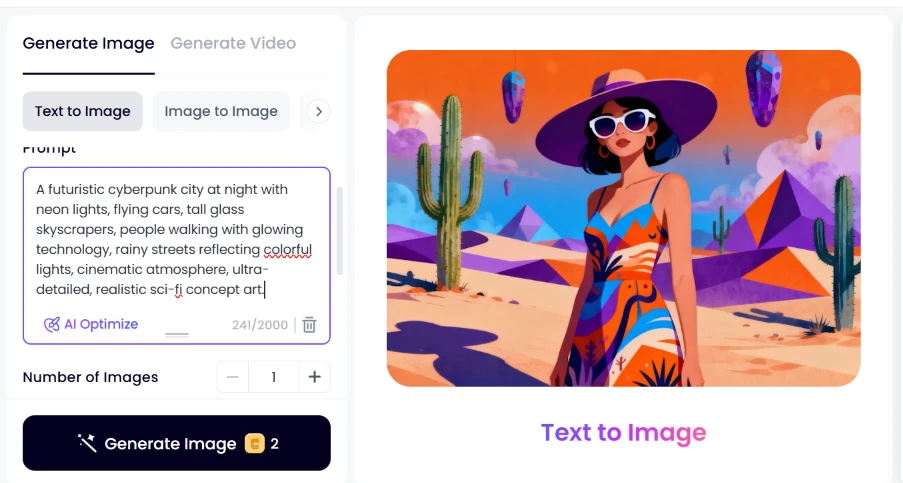
For the image test I opened Generate Image and stayed on the Text to Image tab. I pasted in this prompt:
A futuristic cyberpunk city at night with neon lights, flying cars, tall glass skyscrapers, people walking with glowing technology, rainy streets reflecting colorful lights, cinematic atmosphere, ultra-detailed, realistic sci-fi concept art.
The counter under the box read 241/2000 characters, and an AI Optimize button sat next to it in case I wanted the tool to rewrite my prompt for me. I left Number of Images at 1. The Generate Image button spelled out the cost plainly at 2 credits, which I appreciated because I knew what the run would take before clicking.
The right side of the screen showed a "Text to Image" example, a woman in a desert, while I set things up, so the panel never sat blank.
Then the result came back.
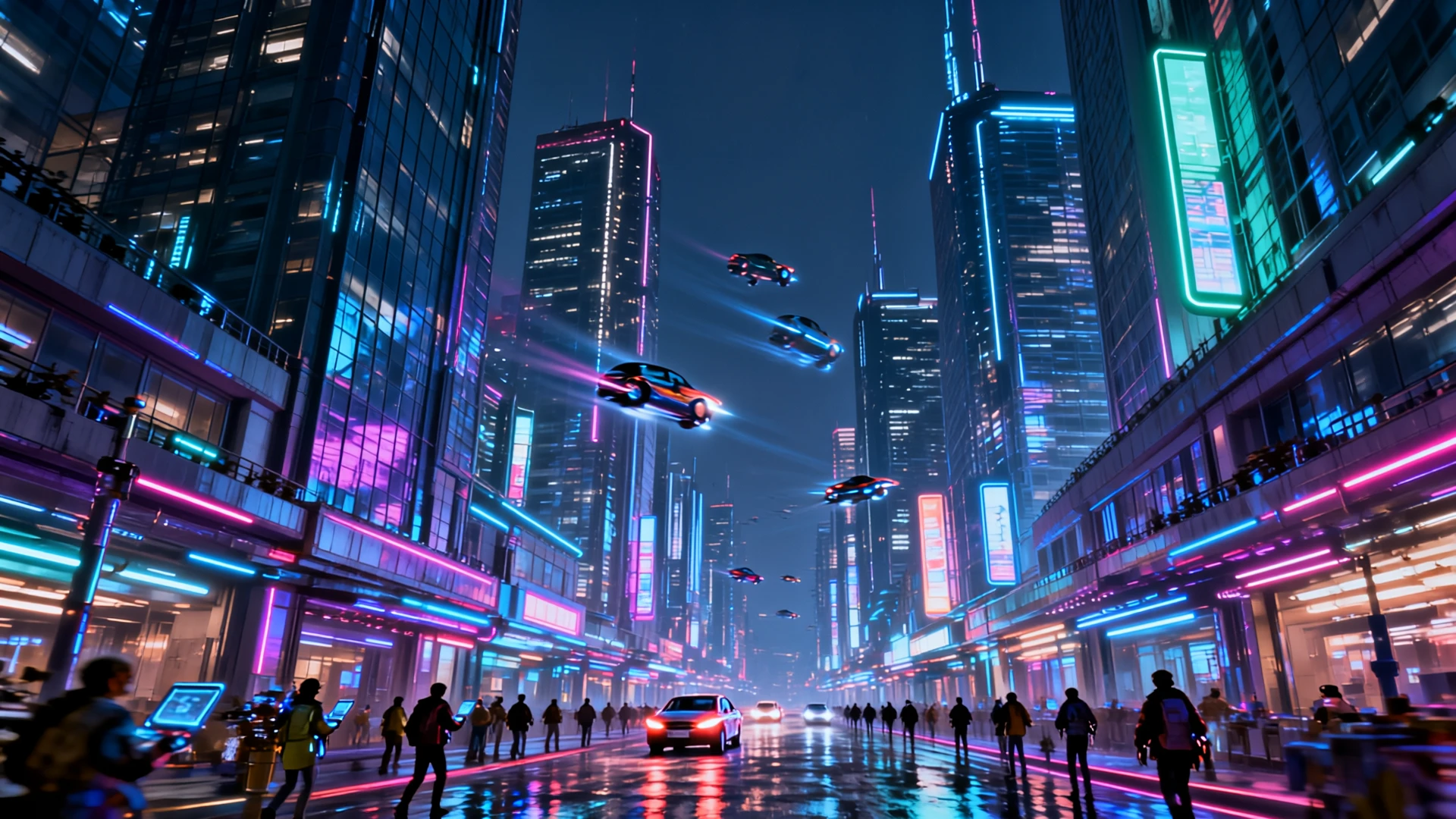
The output tracked the prompt closely. Neon signage, flying cars caught mid-air, rain-slicked streets throwing back colored light and a crowd walking between the towers were all there. For a 2-credit generation the detail held up well, and nothing about it read as a recycled stock image.
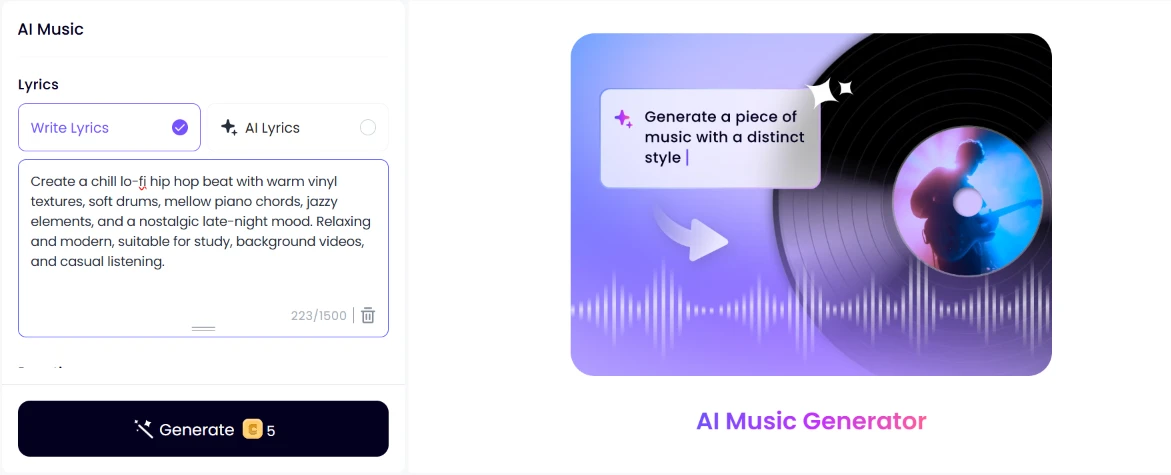
Next I moved to AI Music. I kept Write Lyrics selected rather than AI Lyrics and typed out the track I wanted:
Create a chill lo-fi hip hop beat with warm vinyl textures, soft drums, mellow piano chords, jazzy elements, and a nostalgic late-night mood. Relaxing and modern, suitable for study, background videos, and casual listening.
The character counter sat at 223/1500, and the Generate button showed a 5-credit cost, higher than the image run. On the right, a panel nudged me to "Generate a piece of music with a distinct style" next to a spinning vinyl graphic.
I hit Generate and waited.
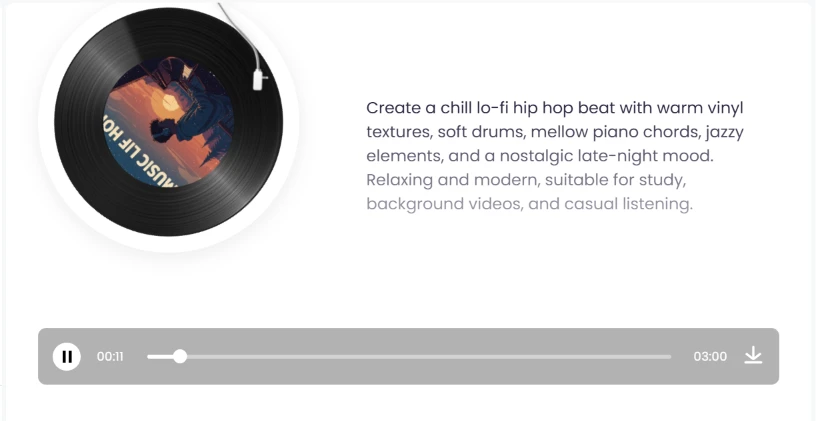
It returned a full three-minute track from that one prompt. The player laid my description over the artwork, and I could scrub the timeline or grab the download arrow on the right. At the eleven-second mark it was already playing back cleanly. Pulling a 3:00 piece rather than a short loop out of 5 credits felt like fair value.
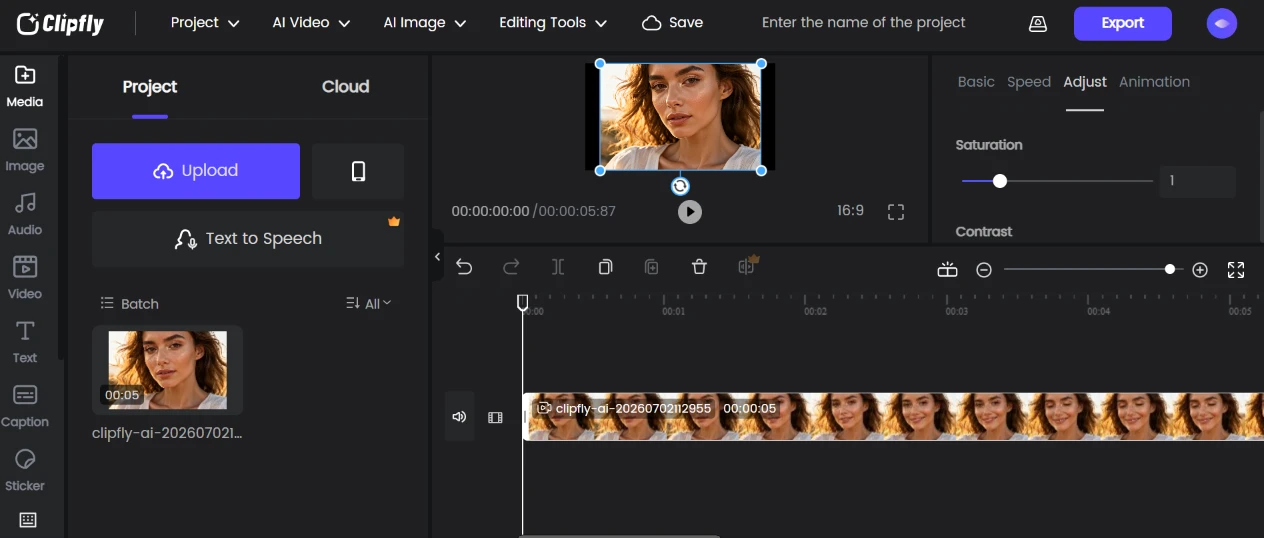
I opened one of my generated clips in the editor to see how much I could change after the fact.
The left rail carried the usual categories: Media, Image, Audio, Video, Text, Caption and Sticker. My clip sat on the timeline at just under five seconds, and the Adjust panel on the right gave me sliders for Saturation and Contrast.
The layout matched what I expect from a timeline editor, so I did not have to hunt for anything. Text to Speech sat under the Project tab with a small crown on it, marking it as a paid extra. A 16:9 ratio and a clear Export button up top meant I could take a clip from generation to a finished file without leaving the page.
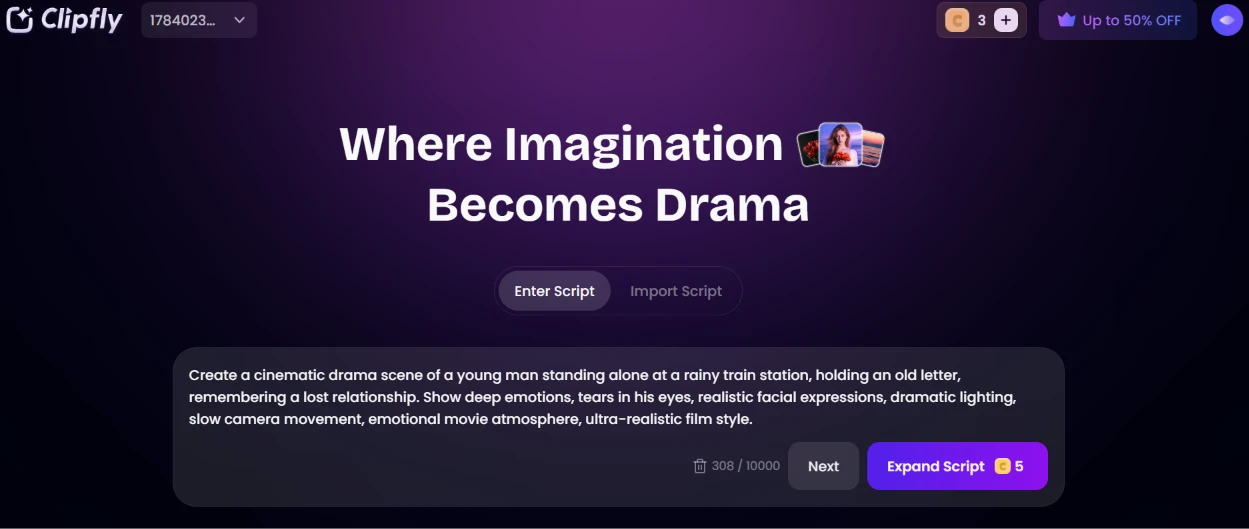
The AI drama tool opened on a dark screen headed "Where Imagination Becomes Drama," offering a choice between Enter Script and Import Script.
I typed a cinematic scene to test it:
Create a cinematic drama scene of a young man standing alone at a rainy train station, holding an old letter, remembering a lost relationship. Show deep emotions, tears in his eyes, realistic facial expressions, dramatic lighting, slow camera movement, emotional movie atmosphere, ultra-realistic film style.
The box tracked 308/10000 characters, so there is room for a long script. Two buttons sat at the bottom: a plain Next, and an Expand Script option priced at 5 credits that offered to build my short scene out into something fuller. Handing over a couple of sentences and letting the tool stretch them into a script was the part I most wanted to come back to.
With everything drawing on the same balance, the Rewards Center was the screen I ended on.
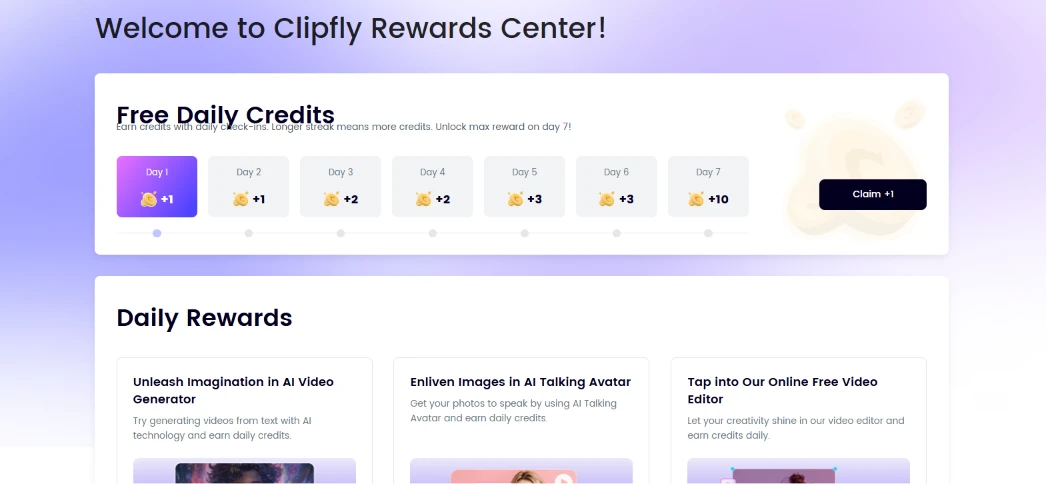
It opened on "Welcome to Clipfly Rewards Center" with a Free Daily Credits row laid out as a seven-day check-in. The early days handed out one or two credits each, climbing to a +10 on day seven, and a black Claim button sat on the right for that day.
Under Daily Rewards there were task cards that paid out for trying specific features, like generating a video from text or animating a photo with the AI Talking Avatar.
This second look at the same page made the loop obvious. Every generation I had run pulled from that one balance, so the daily check-in and these task credits are how you top it back up without paying. Starting on 10 credits, that mattered more than I expected by the end of the session.
| Dimension | Our test | User signal | Verdict | Composite |
|---|---|---|---|---|
| Output Quality Visual realism and consistency | 8.8 | 9.1 | Excellent | |
| Ease of Use Learning curve and workflow | 9 | 9.2 | Excellent | |
| Reliability Success rate per generation | 7.4 | 7.2 | Good | |
| Value for Money Credits, pricing, usefulness | 7 | 6.8 | Moderate | |
| Feature Set Breadth of creative tools | 8.6 | 8.4 | Excellent | |
| Beginner Friendliness Suitability for new users | 9.1 | 9 | Excellent |
Toolscopia uses cookies to keep you signed in, remember your preferences, and understand how our reviews get read. Analytics are anonymous. See our privacy policy for the full detail.



Comments 0
Join the discussion and share your perspective.
Sign in to post a comment and reply to other readers.
No comments yet
Be the first to share your perspective on this tool.