1
Photo to video animation
Frequently praised for creating short, eye catching animations from static photos when prompts are simple.
DeeVid AI is an AI video and image generation platform that turns photos, prompts, and scripts into short clips. Capable users can get striking animations, but pricing, credits, and reliability make it risky for serious paid projects.
Independent review — we test tools ourselves and analyze public user reviews. How we test.
DeeVid AI can occasionally deliver eye catching photo animations and decent clips, especially when prompts are very clear and simple. However, output quality is highly inconsistent, prompt adherence is poor, and complex scenes often fail. The credit system feels expensive and unforgiving, with no refunds for unusable generations and aggressive subscription practices. Customer support is largely unhelpful and billing complaints are frequent. It is best suited only for low stakes experimentation, not for professional or budget constrained work.
DeeVid AI is an all-in-one AI video and image creation platform that works as an AI agent. Rather than locking you into a single engine, it plugs into several leading models such as Veo, Sora, Kling and Nano Banana and picks the best-fit one for each task, which keeps your attention on creative direction over technical setup. It launched in 2024 and targets short-form content for platforms like TikTok and Reels. Access runs on a credit-based system, where each generation draws down a balance.
On the creation side, you can begin from a written prompt or feed in a photo or video you already have, then generate or restyle footage up to 1080p. The image tools generate and edit stills, while separate features cover AI avatars with lip-synced dialogue and a video translator that spans 100+ languages. A template library and trending effects round things out for quick social posts, and a newer Viral Studio takes a viral link or uploaded clip and remixes a similar video from it. The breadth makes DeeVid read less like a single generator and more like a full production workspace, though the credit model pushes serious use toward a paid plan before long.
Frequently praised for creating short, eye catching animations from static photos when prompts are simple.
Allows script driven avatar and explainer videos, but reviewers report mispronunciations and random added words.
Photo enhancements often follow prompts, though some users see major errors and misspellings in visual text.
Fast V2.0 model highlighted positively as cheap and effective for transition sequences by several satisfied users.
Reference image section can yield better accuracy, yet still sometimes deviates from prompts or alters key details.
Widely criticized; short clips and retries burn many credits, with no refunds for failed or unusable outputs.
Trials and upgrades often lead to unexpected annual charges, hidden renewals, and refused refunds.
Some paying users report watermarks on pro credit generations, causing frustration and perceived low value.
Assistant can acknowledge system errors, but support rarely restores credits or resolves underlying failures.
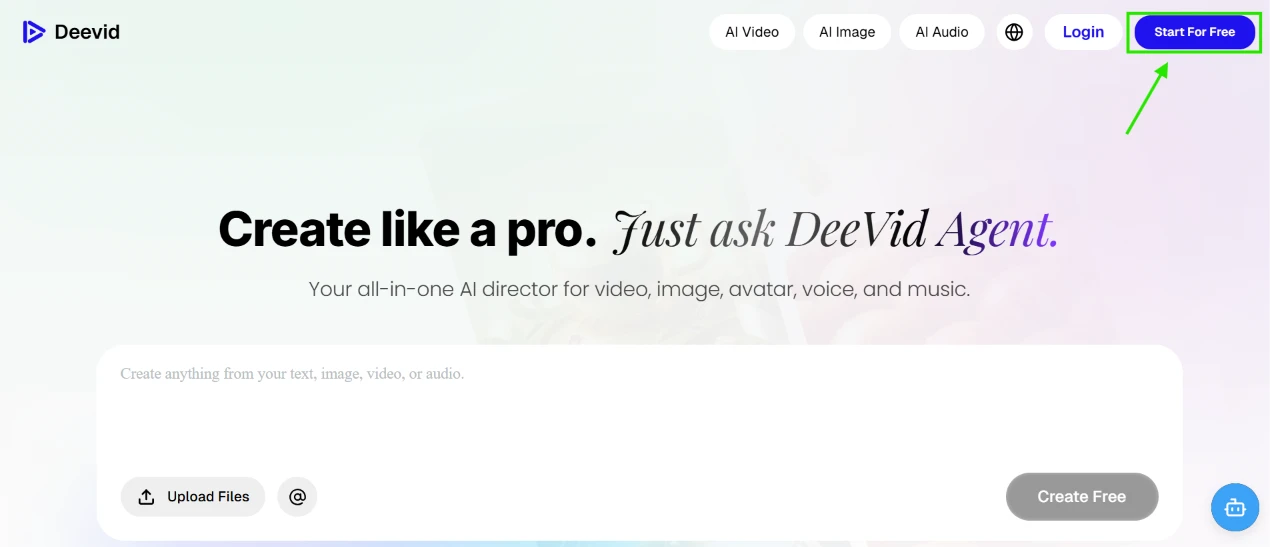
The first thing my eye went to on the homepage was the Start For Free button in the top right corner, so I dropped a green arrow on it in my screenshot. That free promise is the reason I bothered signing up at all.
The page leads with the slogan "Create like a pro. Just ask DeeVid Agent," and under it a single wide prompt box invites you to build from text, image, video or audio. A greyed Create Free button sits at the bottom of that box.
Clean first impression, and the layout did not crowd me. The one thing that gave me pause was that Create Free already looked disabled before I had even logged in, which left me wondering how far I could get without an account.
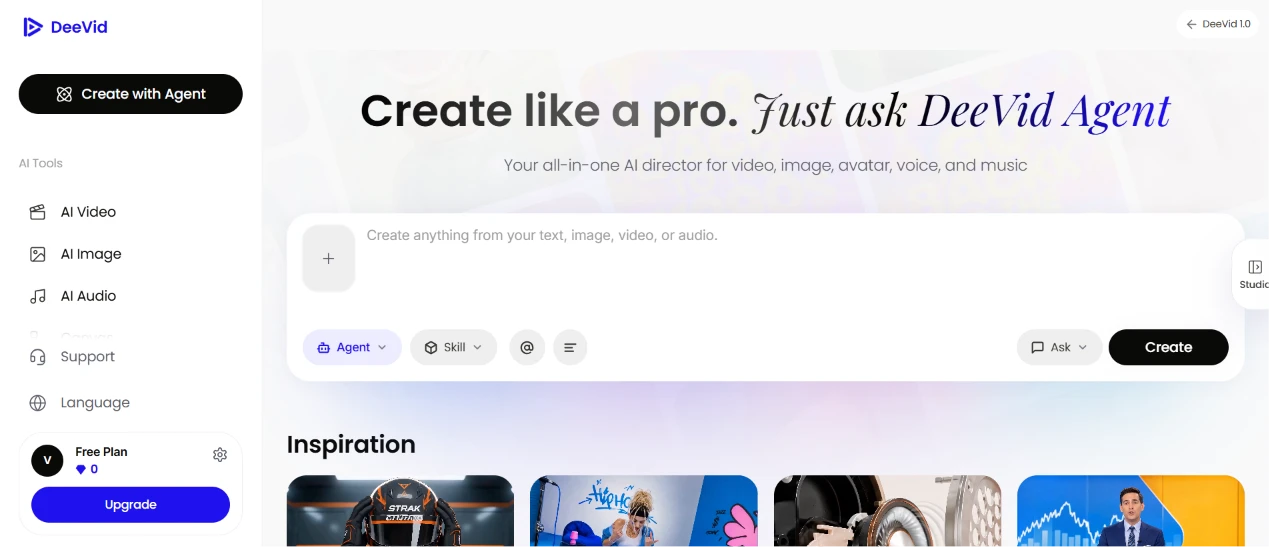
I logged in to see what would open up.
The dashboard kept the same headline and prompt box and added a left rail for the tools plus a Create with Agent button up top. Down in the corner a Free Plan badge showed a heart with a 0 beside it and an Upgrade button underneath. The top right labelled the build DeeVid 1.0, and an Inspiration strip of sample clips ran along the bottom.
Barely anything changed from the logged-out view, which I appreciated because there was nothing to relearn. That 0 next to my plan is the credit balance, and it was already sitting at zero the moment I arrived.
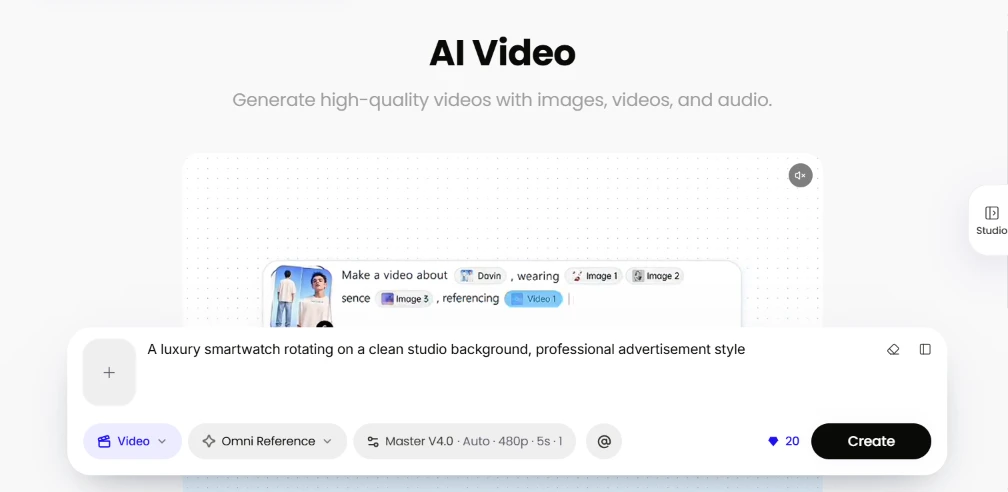
Over in AI Video I went to actually make something. I typed a plain brief into the box: "A luxury smartwatch rotating on a clean studio background, professional advertisement style." The model was already set to Master V4.0, rendering 480p at five seconds for one output, and the Create button showed the clip would cost 20 credits.
The setup was fast and the defaults were sensible for a first run. Nothing in the prompt box tripped me up.
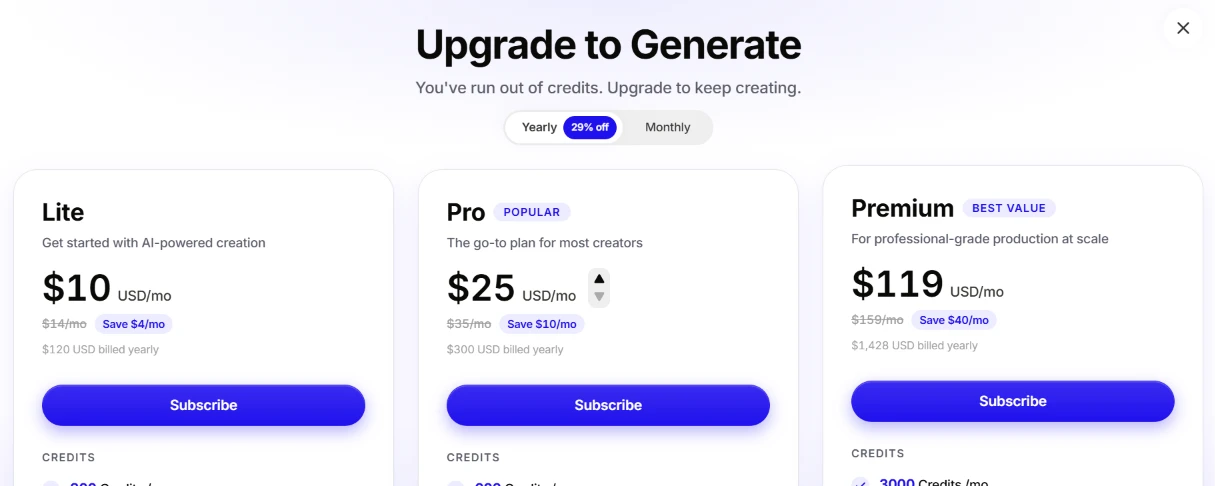
Then I pressed Create.
Instead of a video, a panel slid up titled Upgrade to Generate with the line "You’ve run out of credits." Three tiers appeared under a yearly toggle that knocks a chunk off each price. The cheapest, Lite, runs $10 a month. Pro sits in the middle at $25 a month and wears the Popular tag. Premium tops it out at $119 a month, flagged Best Value.
This is where the test stalled. The homepage sold me on Start For Free and the badge said Free Plan, yet I could not render a single clip because the account opens with zero credits. "Run out of credits" was not quite accurate either, since I never had any to run out of. The gap between that free framing and a hard paywall on the first thing I tried was the most jarring moment of the whole session.
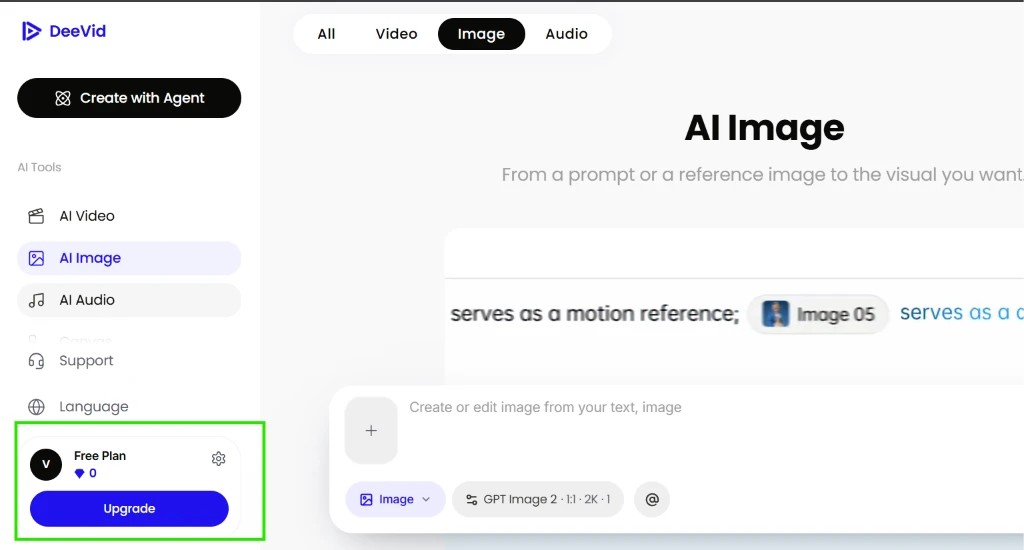
With generation gated, I switched to browsing the rest of the tool rather than paying on the spot, and AI Image was the first stop. It pairs a prompt box with GPT Image 2 as the engine, set to 2K at a 1:1 ratio, and I boxed the Free Plan badge in green again, still reading zero.
Seeing GPT Image 2 wired in raised my expectations for the output. From here I stopped poking at Create and started opening each part of the tool to see what it actually offers.
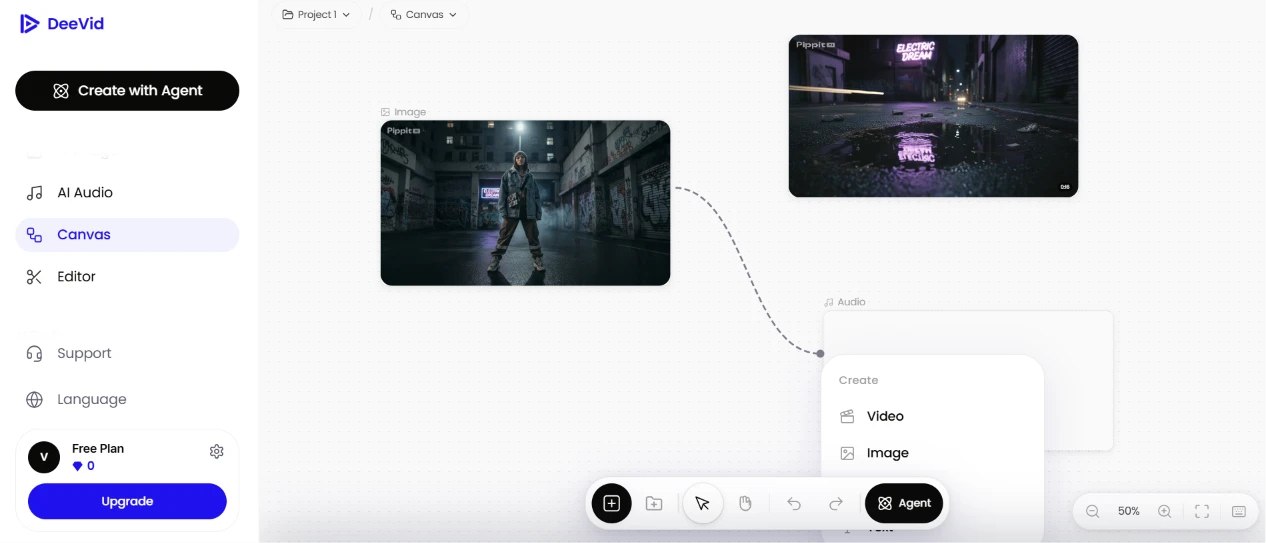
I opened the Canvas view to see how a project looks when it is laid out visually.
Two image nodes sat wired together by a dashed line, feeding into an Audio node that offered a small Create menu for Video or Image. A floating toolbar along the bottom carried the usual select and zoom controls plus an Agent button, with the canvas sitting at 50%.
The node-and-wire layout made the flow easy to read, and I could see how one asset would hand off to the next. One detail caught me off guard: the sample clips loaded onto the canvas carry a Pippit watermark in the corner, a different brand name from the DeeVid interface wrapped around them. It broke nothing, but it was a strange thing to find sitting inside a first-party demo.
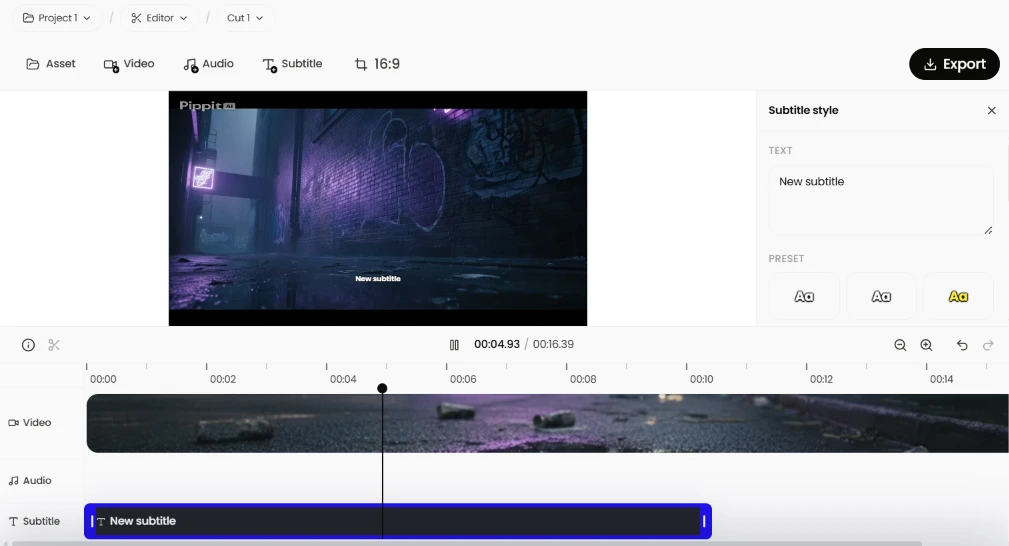
Next I went into the Editor to see the timeline side of the tool. It opened on a Cut with a full timeline already in place, the video lane running above the audio and subtitle lanes, and the preview held a clip running to 16.39 seconds with a New subtitle block sitting on it. A Subtitle style panel on the right offered preset looks I could apply, and Export waited in the top right beside a 16:9 crop selector.
This felt like the most finished part of the tool. The timeline behaved the way I expect an editor to behave, so I never had to hunt for a control. The same Pippit watermark rode along on the preview clip here too.
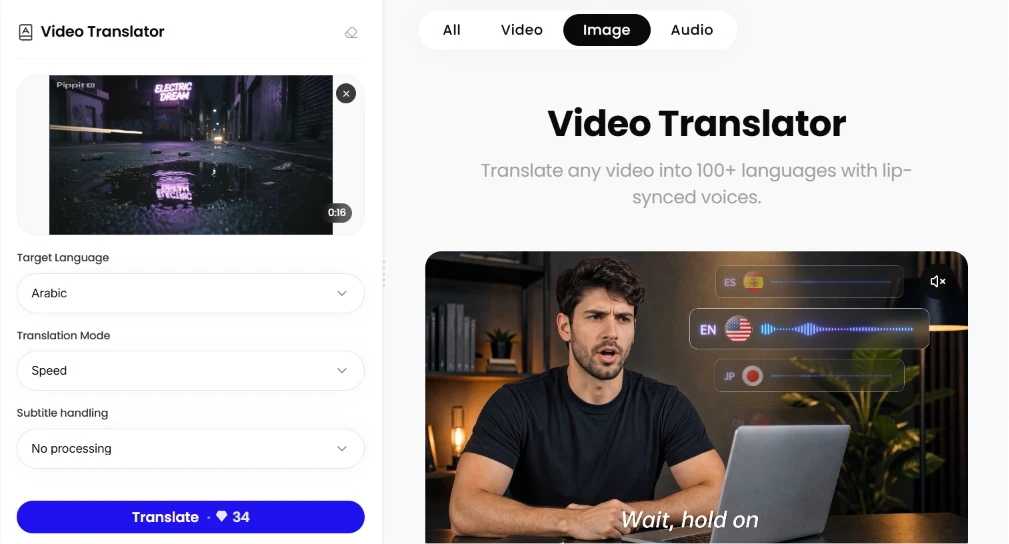
I tried the Video Translator on that same clip. I set the target language to Arabic. The mode stayed on Speed and the subtitle handling on No processing.
The Translate button quoted 34 credits for the job. The marketing panel beside it promised translation into 100+ languages with lip-synced voices, and a demo showed one speaker’s voice moving between Spanish and English, with Japanese lined up beneath. A caption under the clip read "Wait, hold on."
The lip-sync claim is the interesting part, and 100+ languages is a wide net to cast. Without credits I am taking the output quality on trust for now. The 34-credit price also made me run quick math on how fast a Free Plan of zero pushes you toward a subscription for anything real.
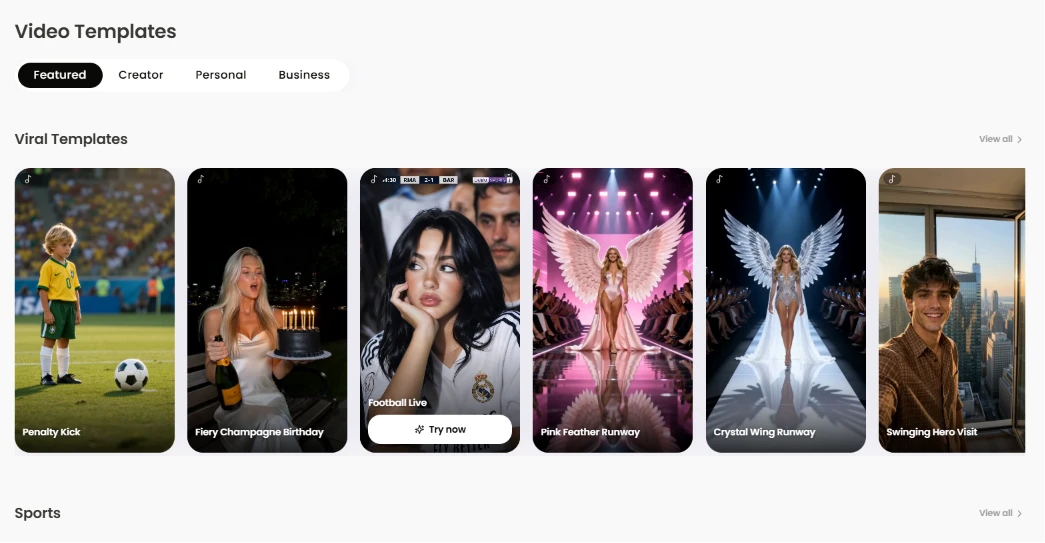
I opened the Templates area under Explore to see what ready-made starting points exist. A Featured tab led with a Viral Templates row, and the covers mixed a Penalty Kick soccer scene, a champagne birthday setup, a pink feather runway and a winged runway walk. A Sports category sat below with its own View all link, and hovering any cover surfaced a Try now button.
This is the part that felt built for speed. If credits were not the blocker, picking a viral template looks like the quickest way to a usable clip with no prompt writing at all, though I only browsed the Featured shelf.
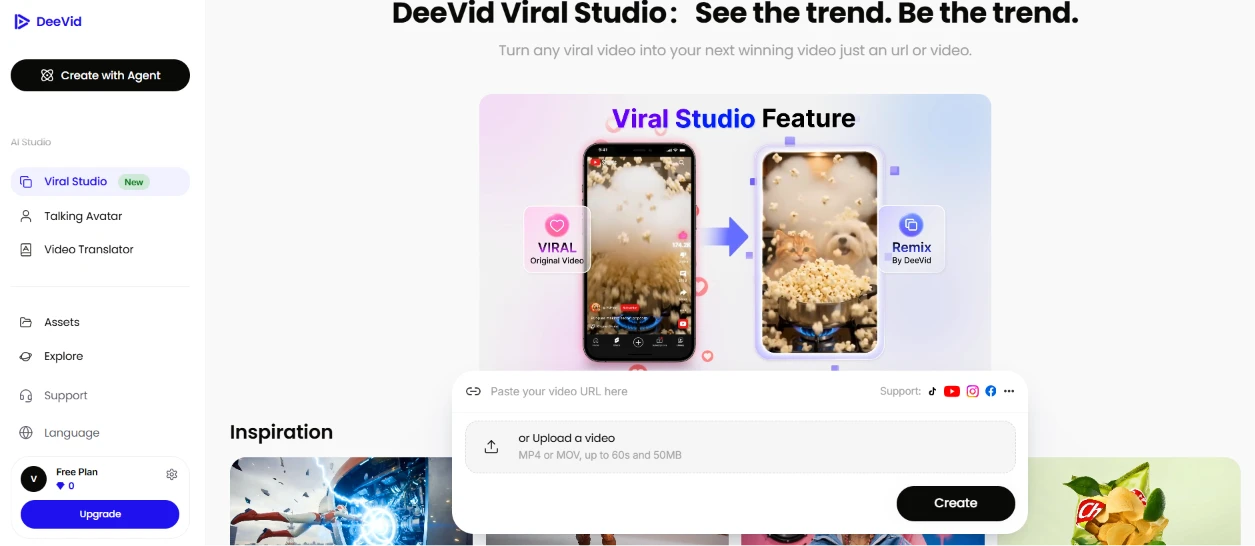
The last stop was Viral Studio, tagged New in the rail.
The pitch reads "See the trend. Be the trend," and the mechanic is simple: paste a viral video URL or upload a clip up to 60 seconds and 50MB, and it remixes a similar video for you. A before-and-after showed an original viral clip turning into a Remix By DeeVid version, with support icons for the usual short-form platforms sitting alongside the upload box.
This was the feature I most wanted to run for real. Feeding it a genuine trending link and seeing how close the remix lands is the entire test, and it is exactly what the zero-credit wall kept me from doing. Of everything in the session, Viral Studio is the reason I would come back and load credits to finish the job properly.
| Dimension | Our test | User signal | Verdict | Composite |
|---|---|---|---|---|
| Output Quality Visual and audio correctness | 8 | 7 | Good | |
| Prompt Adherence Follows scripts and directions | 7.5 | 6.5 | Good | |
| Ease of Use Interface and learning curve | 8.5 | 7.5 | Good | |
| Value for Money Credits versus usable results | 6.5 | 5.8 | Moderate | |
| Billing Transparency Clarity of pricing and renewals | 6 | 5 | Weak | |
| Customer Support Responsiveness and fairness | 6 | 5.5 | Weak | |
| Reliability Crashes and failed renders | 7.5 | 6.5 | Good |
Toolscopia uses cookies to keep you signed in, remember your preferences, and understand how our reviews get read. Analytics are anonymous. See our privacy policy for the full detail.



Comments 0
Join the discussion and share your perspective.
Sign in to post a comment and reply to other readers.
No comments yet
Be the first to share your perspective on this tool.